

If you are on a free Google AI Pro plan, for example through Reliance Jio or the student offer, Antigravity only gives you Hydrogen in the model list. Gemini 4 Neon and Carbon, the two best models right now, are missing. The way around it is the $10 of monthly API credits that come with Google AI Pro. An API key unlocks every model, so I connected that key to Antigravity through a small MCP server. This guide shows exactly how, so you can use carbon and neon in antigravity free of any Ultra subscription.
Developer Summary · Complimentary AI Pro Credits
In my own workflow, I connected Google AI Studio’s newest frontier models—Gemini 4 Neon and Carbon—directly into Antigravity using a short standalone FastMCP script. This unlocks deep reasoning, live Google Search grounding, and multi-model escalation across all your projects, paid for by the credits that come with the plan. When I tested it, Neon answered a payment gateway planning prompt in about 28 seconds and pulled in the current Stripe retry schedule through search.
Here is the complete guide explaining every Google offer that includes AI Pro and how to activate your planning server in Antigravity.
Quick Guide · Gemini Frontier Setup
Reliance Jio Offer: Eligible Jio Unlimited 5G users could claim 18 months of Google AI Pro, the plan that carries the $10 monthly credits. Check the MyJio app to see if it is still open.
Student Offer: College students get 12 months free: Google AI Pro in the US and Google AI Plus in 140+ other markets. Only the US offer includes the $10 credits, because Google says AI Plus and family plan members are not eligible for them.
Pixel Bundles: Pixel 10 Pro buyers got 12 months of Google AI Pro (that offer ended October 31, 2026), and Pixel 11 Pro buyers get 6 months.
All Google AI Pro Offers Compared
Google gives AI Pro, the plan with the $10 monthly credits, through several partnerships and promotions. Here is how they compare:
| Offer Type | Eligible Users | Benefit / Value | How to Claim |
|---|---|---|---|
| Google AI Pro plan | Anyone with a paid plan | $10 per month in Google Cloud credits | Activate the credits on the Google Developer Program page, then create your key in AI Studio. |
| Reliance Jio | Eligible Jio Unlimited 5G users | 18 months of Google AI Pro | Activate in the MyJio app. One report says the window closed on October 29, 2026, so check first. |
| Student offer | College students | 12 months free: AI Pro in the US (credits included), AI Plus in 140+ other markets (no credits) | Redeem by December 31, 2026. A payment method is needed at sign-up. |
| Pixel 10 Pro, Pro XL, Pro Fold | Buyers | 12 months of Google AI Pro | Offer ended October 31, 2026. Only helps if you already redeemed it. |
| Pixel 11 Pro series | Buyers | 6 months of Google AI Pro | Offer runs until October 31, 2027. |
Which Plans Work
How to Claim Your $10/Month Developer Credits
If you have Google AI Pro through a Jio offer, a Pixel, a student offer or a paid plan, claim your monthly credits before making API calls:
- Open the Google Developer Program plans page and sign in with the Google account that holds your AI Pro plan.
- Activate your $10 monthly Google Cloud credits there.
- Visit aistudio.google.com with the same account, open the API keys page and create a key.
- Link that project to a Google Cloud billing account. If it is a Prepay account, add the $5 minimum first: Google uses your free credits before the paid balance, but they pause if the balance reaches $0.
- Keep the key private and do not post it in screenshots or public places. If it leaks, delete it in AI Studio and create a new one.
I made a step-by-step video showing exactly where to claim the credits and create the key, so watch it first if you get stuck:
Will Antigravity Call the MCP Automatically?

Mostly. With the rule file further down, Antigravity should call the tool when you ask for planning, but it decides that itself, so it is not a hard guarantee. When you want to be sure, name the model, for example "plan this with neon".
Once the server is registered in your global configuration and the rule is in place, a planning query looks like this:
Antigravity can call the ask_ai_studio tool in the background, query Gemini 4 Neon with high thinking, and bring the finished plan back into your chat. The first time, it asks you to approve the call, because MCP tools run in Ask mode by default. Approve it, and the plan comes through.
Step-by-Step Setup: Standalone FastMCP Server
You do not need Docker. We run a clean, native Python script that connects to Google's official Interactions API (/v1beta/interactions).
1. Install Python and Two Packages
You need Python 3.11 or newer. Check with python --version, then install the two packages the script uses:
pip install mcp httpx2. The Script (server.py)
Create a folder on your drive (e.g., C:\mcp\google-ai-studio\server.py) and save this code:
import os
import time
import httpx
from mcp.server.fastmcp import FastMCP

mcp = FastMCP("Google AI Studio Frontier Gateway")

API_URL = "https://generativelanguage.googleapis.com/v1beta/interactions"
DEFAULT_MODEL = "gemini-4-neon"
HTTP_TIMEOUT_S = 30.0
POLL_INTERVAL_S = 3.0
MAX_WAIT_S = 360.0

MODEL_MAP = {
    "neon": "gemini-4-neon",
    "carbon": "gemini-4-carbon",
}


def resolve_model(name: str) -> str:
    """Resolve friendly aliases (neon, carbon) to official Interactions API model IDs."""
    if not name:
        return DEFAULT_MODEL
    return MODEL_MAP.get(name.lower().strip(), name.strip())


def _normalize_thinking(model_id: str, thinking_level: str) -> str:
    """Clamp xhigh to high on models that do not support xhigh (e.g., gemini-4-carbon)."""
    level = (thinking_level or "high").lower().strip()
    if model_id == "gemini-4-carbon" and level == "xhigh":
        return "high"
    return level


def _extract_text(data: dict) -> str:
    """Join all text segments from model_output steps in an interaction payload."""
    parts = [
        content.get("text", "")
        for step in data.get("steps", [])
        if step.get("type") == "model_output"
        for content in step.get("content", [])
        if content.get("type") == "text"
    ]
    text = "".join(parts).strip()
    return text or str(data.get("output_text") or data)


def _poll_interaction(client: httpx.Client, interaction_id: str, headers: dict) -> dict:
    """Poll a background interaction until completion or MAX_WAIT_S timeout."""
    deadline = time.monotonic() + MAX_WAIT_S
    status_url = f"{API_URL}/{interaction_id}"
    while time.monotonic() < deadline:
        time.sleep(POLL_INTERVAL_S)
        resp = client.get(status_url, headers=headers)
        if resp.status_code != 200:
            raise RuntimeError(f"Poll error ({resp.status_code}): {resp.text}")
        data = resp.json()
        if data.get("status") not in ("in_progress", "queued"):
            return data
    raise TimeoutError(f"Interaction {interaction_id} did not finish within {int(MAX_WAIT_S)}s.")


@mcp.tool()
def ask_ai_studio(
    prompt: str,
    model: str = "neon",
    enable_search: bool = True,
    thinking_level: str = "high",
    max_output_tokens: int = 65536,
) -> str:
    """
    Connect to Google AI Studio frontier planning models (Neon and Carbon).
    Uses the Interactions API (/v1beta/interactions) with background polling and optional Google Search grounding.
    """
    api_key = os.environ.get("GEMINI_API_KEY") or os.environ.get("GOOGLE_API_KEY")
    if not api_key:
        return "Error: Neither GEMINI_API_KEY nor GOOGLE_API_KEY environment variable is set."

    target_model = resolve_model(model)
    resolved_thinking = _normalize_thinking(target_model, thinking_level)
    headers = {
        "x-goog-api-key": api_key,
        "Content-Type": "application/json",
    }
    payload = {
        "model": target_model,
        "input": prompt,
        "background": True,
        "generation_config": {
            "max_output_tokens": max_output_tokens,
            "thinking_level": resolved_thinking,
        },
    }
    if enable_search:
        payload["tools"] = [{"type": "google_search"}]

    try:
        with httpx.Client(timeout=HTTP_TIMEOUT_S) as client:
            resp = client.post(API_URL, headers=headers, json=payload)
            if resp.status_code != 200:
                return f"Google AI Studio Error ({resp.status_code}): {resp.text}"

            data = resp.json()
            if data.get("status") in ("in_progress", "queued"):
                data = _poll_interaction(client, data["id"], {"x-goog-api-key": api_key})

            status = data.get("status")
            if status in ("failed", "cancelled"):
                return f"Google AI Studio Interaction {status}: {data.get('error') or data}"
            return _extract_text(data)
    except Exception as e:
        return f"Request failed: {str(e)}"


if __name__ == "__main__":
    mcp.run()
3. Global Configuration in Antigravity
To ensure this server is available across every workspace folder on your machine, register it in your global settings.
Open ~/.gemini/config/mcp_config.json (this applies to all your projects; a single project can use .agents/mcp_config.json inside its own folder) and add the server definition. Use the full path to python.exe if plain python is not found:
{
  "mcpServers": {
    "google-ai-studio": {
      "command": "python",
      "args": [
        "-u",
        "C:\\mcp\\google-ai-studio\\server.py"
      ],
      "env": {
        "GEMINI_API_KEY": "YOUR_ACTUAL_API_KEY_HERE"
      },
      "timeoutSeconds": 420,
      "disabled": false
    }
  }
}
Where is this file? If you want to paste the key yourself, open your user folder, then the .gemini folder, then config, and open mcp_config.json. On Windows that is C:\Users\your-name\.gemini\config\mcp_config.json. Find the google-ai-studio server, replace YOUR_ACTUAL_API_KEY_HERE with your key between the quotes, and save. You can also paste the key into the Antigravity chat and ask it to add the key to this MCP, and it will find the file for you.
In the Antigravity app, click the three dots next to the server and choose Restart. In the IDE, reload the window (Ctrl + Shift + P → Developer: Reload Window). A colored dot and a tool count next to google-ai-studio show it is connected.
4. Test It and Fix Common Problems
Type: "Use ask_ai_studio with neon to say hello." Antigravity asks permission to run the tool, so approve it. A reply means the whole chain works.
- "Neither GEMINI_API_KEY nor GOOGLE_API_KEY is set": the key line in the config is empty or misspelled.
- Error 403 or 429: the credits are not active, your plan lapsed, or the $10 is used up. Check billing in Google Cloud.
- Server missing from the panel: wrong path to
server.pyorpython.exe, or you did not restart it. - Tool never called: the rule file did not load (check the header lines in the next section) or the request did not match it. Name the model in your prompt.
- Carbon takes 3–4 minutes or times out: Carbon thinks longer than Neon, so keep the background polling loop in
server.pyand set"timeoutSeconds": 420inmcp_config.json.
One cost note: thinking tokens were most of the usage in my test (about 2,800 of 3,500 tokens). Keep thinking_level="high" for real planning work, use xhigh only when high falls short (it thinks even longer), and watch your credit use in Google Cloud billing.
The Model Routing Strategy
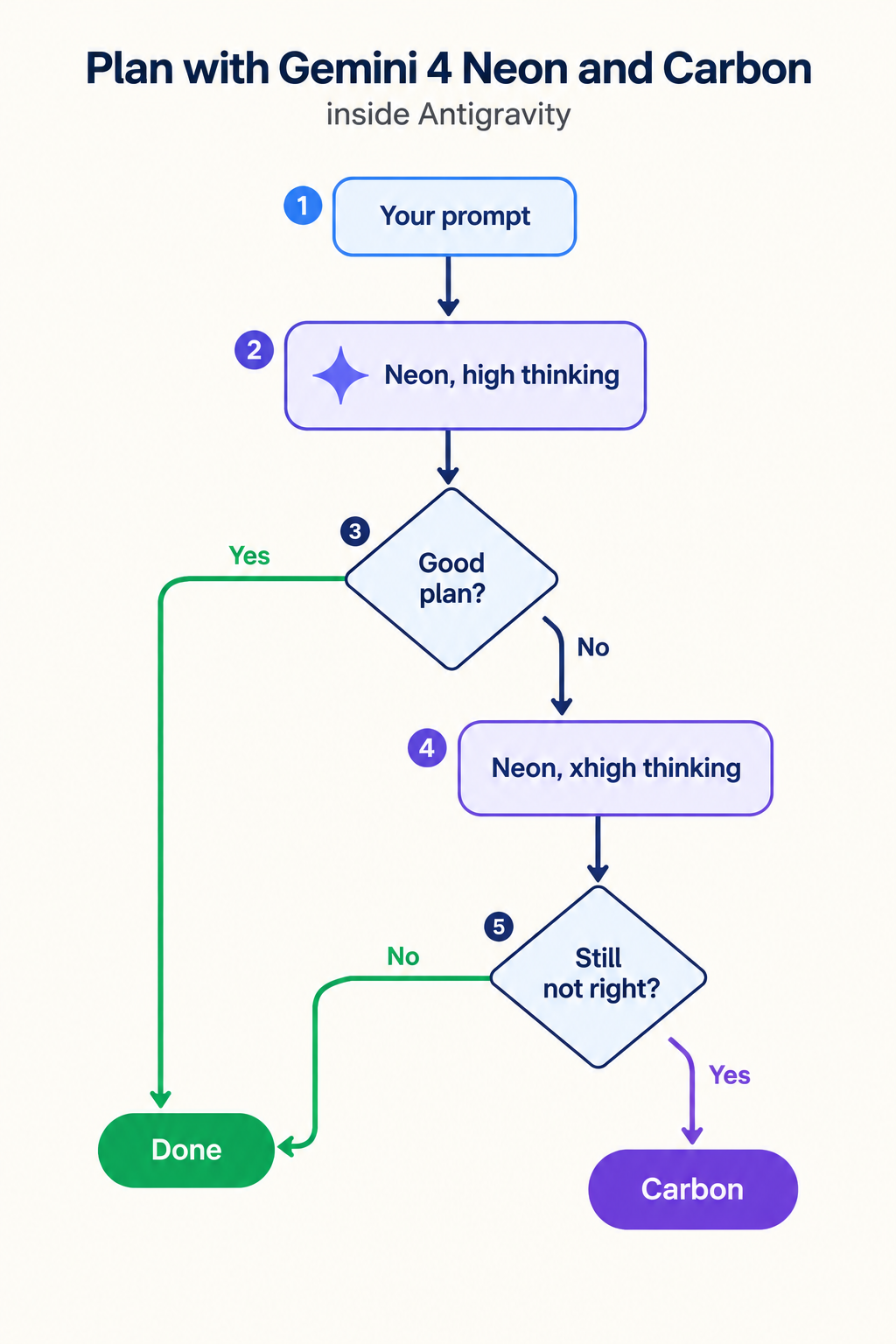
Matching the model to the job saves time and keeps your $10 going further. This is the order I use:
- Step 1, Neon with high thinking: my default for planning, architecture and code review.
- Step 2, Neon with xhigh thinking: if the plan is thin or misses the point, rerun the same prompt at
thinking_level="xhigh". Neon accepts xhigh, its top setting. Carbon tops out at high, and it rejects xhigh with an error, so use xhigh on Neon only. - Step 3, Carbon: if Neon still does not give the result you want, move to Carbon.
A Real Example: Planning a Payment Webhook Service
Here is the exact flow I ran, so you can copy it on your own project:
- Prompt: "Plan a webhook service for a payment gateway. Check the current Stripe retry schedule."
- The prompt goes to
ask_ai_studiowith neon. The model ran two Google searches, thought it through and returned in about 28 seconds. - The plan came back in five parts: secure intake with signature checks, a queue that acknowledges fast, duplicate-safe processing, retries with a dead-letter queue, and reconciliation. It also stated Stripe's retry window from its official docs (up to three days in live mode).
- If a plan ever comes back thin, rerun the same prompt with neon at
xhighthinking, and if it still misses, hand it to Carbon. - Open Google Cloud billing and check how much of your $10 the run used.
Automate Model Selection with Workspace Rules
To make Antigravity pick between Neon and Carbon for you, add a rule file at .agents/rules/gemini-frontier-planning-rule.md in your project, or in ~/.gemini/config/rules/ to use it in every project. Keep the file directly inside that folder, and keep the three header lines at the top. Antigravity silently ignores a rule file that has no header:
---
trigger: model_decision
description: Use only when the user is stuck or asks for a hard plan, architecture design or a tough bug. Skip small tasks
---

# Gemini Frontier Planning Protocol

When the user is stuck or asks for a hard plan, architecture design or a tough bug (skip small tasks, because every call uses the $10 credits):
1. Call the ask_ai_studio tool with model="neon", thinking_level="high" and search on.
2. If the plan is thin or misses the point, call it again with model="neon" and thinking_level="xhigh".
3. If the result is still not right, call it with model="carbon".
4. Read the reply and summarize the findings in the chat.
The trigger line decides when Antigravity loads the rule:
model_decision: Antigravity reads the description and loads the rule when your request matches. This is the best fit here, but it is not guaranteed every time.always_on: the rule loads in every chat.manual: the rule loads only when you mention it with @ in your message. This is the surest option.glob: the rule loads only for files that match a pattern.
You can also add or manage rules from the menu: in the IDE, open the three-dot menu on the agent panel, choose Customizations, then Rules. In the desktop app, open Customizations in the left sidebar, then Installed, then Skills & Rules.
Keep Your $10 Safe
These calls can use up your $10 quickly, so be careful with this key. Use it when Antigravity's own model gets stuck or when you have a hard plan to make, and keep small tasks on Antigravity's own model.
If you do not need the planner for a while, turn the MCP off so it cannot be called by mistake:
- Click Customizations, then Installed, and open MCP Servers.
- Click the three dots next to google-ai-studio. The menu shows Restart, Disable and Delete.
- Click Disable. When you need the planner again, open the same menu and switch it back on, then restart the server if it asks.
You can also set "disabled": true for the server in the config file.
Summary of Key Takeaways
By pairing the $10 monthly credits from Google AI Pro, whether from the plan itself, a Jio offer, a student offer or a Pixel, with this standalone FastMCP bridge, you can reach Google's most powerful frontier models from Antigravity without an Ultra subscription. You avoid container bloat, keep your editor light, and get a planner you can pick by name: Neon first, Carbon as the backup. Watch your credit use in Google Cloud billing, because high-thinking prompts use the most.