
Platform: Windows 10/11 & macOS
Executive Summary: Whisper AI Speech-to-Text Directly at Your Cursor
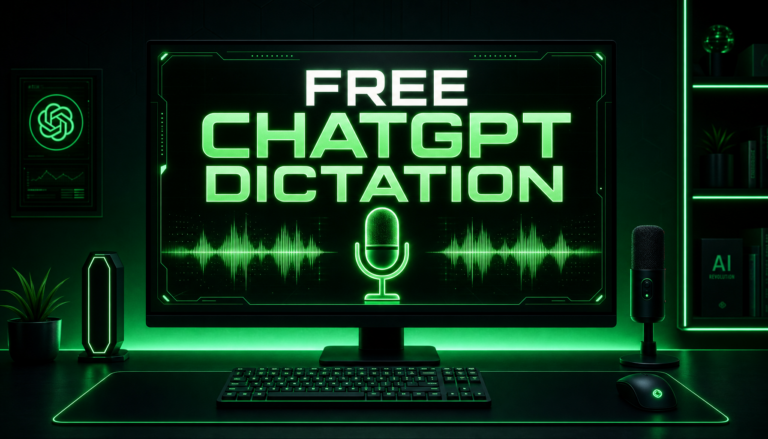
OpenAI has quietly introduced system-wide voice dictation inside the official ChatGPT desktop application—completely free for all standard account holders. Unlike browser-bound chatbots or paid speech typing software, this feature operates as a universal desktop overlay. By using customizable shortcuts (like Alt + C or Alt + X), you can inject Whisper-grade transcriptions directly into Microsoft Word, Notion, Slack, Google Docs, VS Code, or your browser without paying a single dollar.
The Hidden Upgrade: Why Desktop Dictation Changes Everything
For years, digital writers, software engineers, and researchers have relied on either built-in operating system speech recognition (like Windows Speech Recognition or Apple Dictation) or third-party paid subscriptions such as Dragon NaturallySpeaking ($500+ perpetual) and browser extensions like Voice In ($5 to $10 per month).
What most users don’t realize is that installing the official ChatGPT desktop application on Windows or macOS provides instant access to OpenAI’s state-of-the-art Whisper speech recognition model directly within any active text cursor on your computer.
Here is the crucial distinction: this is not the conversational “Voice Mode” where ChatGPT speaks back to you. This is pure, unadulterated voice dictation—converting your spoken words into clean, punctuated text with zero token consumption and zero paid Plus plan requirements.
Dual Activation Architecture: Fully Customizable to Your Preference
One of the most practical engineering decisions in the ChatGPT desktop app is the separation of dictation into two distinct shortcut modes. In Settings → Personal → Voice, you can click the pencil icon next to either mode to assign any custom key combination you prefer (as long as it includes a modifier like Alt or Ctrl / Cmd), or delete shortcuts you don’t need:
⚡ Mode 1: Push-to-Talk (Hold Key)
Default Shortcut: Alt + C (customizable)
How it works: Press and hold down the key combination while speaking. The moment you release the keys, your speech is instantly processed and typed directly where your cursor is positioned.
Best for: Quick emails, chat replies, code comments, and inline corrections.
🎙️ Mode 2: Hands-Free Toggle
Default Shortcut: Alt + X (customizable)
How it works: Tap the key combination once to start recording. A glowing indicator appears on your screen. Speak freely for as long as needed, then tap the combination again to commit the transcription.
Best for: Long essays, blog drafting, meeting transcriptions, and brainstorming.
The Secret Weapon: Training the Custom Dictation Dictionary
Even advanced deep neural speech models like Whisper suffer from one persistent annoyance: niche brand names, proprietary acronyms, and foreign terms.
For instance, speaking the channel and domain name “Softreviewed” often causes standard speech models to output “Soft reviewed” with an unwanted space. Similarly, technical jargon like “Kubernetes”, “GraphQL”, or unique company names frequently get mangled.
OpenAI resolved this by embedding a Custom Dictation Dictionary directly inside the desktop app settings:
- Open the ChatGPT desktop app and click your profile icon in the bottom-left corner.
- Select Settings and navigate to Personal → Voice.
- Scroll down to the Dictionary section.
- Click Add Word and type your specialized brand names, product codes, or acronyms exactly as you want them capitalized and spelled (e.g.,
Softreviewed,PyTorch,SaaS). - Save your changes. The next time you speak that term, the engine prioritizes your custom vocabulary dictionary over general acoustic probabilities.
🛡️ Privacy & Data Controls: Opting Out of OpenAI Model Training
According to official OpenAI Help Center documentation, audio clips recorded via voice dictation are stored alongside chat logs and may be utilized to train and refine future foundation models by default.
If you work in healthcare, legal consulting, software engineering, or enterprise environments where proprietary source code or confidential client data is dictated, you must configure your data privacy settings immediately:
Mandatory Privacy Step for Professionals
Navigate to Settings → Data Controls inside the desktop client. Toggle “Improve the model for everyone” to OFF. This ensures your dictation audio and transcripts are never retained or processed for training future OpenAI models.
Troubleshooting: Fixing the “Silent Mic” & Virtual Driver Conflict
The number one frustration users report when attempting desktop dictation on Windows is a frozen transcription spinner or completely blank text. In almost 90% of cases, this is caused by virtual audio driver conflicts.
Modern gaming laptops and workstations frequently have virtual audio adapters installed from software like Steam Streaming Microphone, Oculus/Meta Quest Virtual Audio, Voicemeeter, or Elgato Wave Link. The ChatGPT desktop app often defaults to one of these inactive virtual devices rather than your physical headset or USB condenser microphone.
How to Fix It in 60 Seconds:
- On Windows, press
Win + Ito open Settings. - Navigate to System → Sound → More sound settings (Recording tab).
- Right-click any unused virtual devices (e.g., Steam Streaming Microphone) and select Disable.
- Ensure your physical microphone (e.g., Blue Yeti, Shure MV7, or Realtek Audio) is set as both the Default Device and Default Communication Device.
- In the ChatGPT desktop app under Settings → Voice, manually select your physical microphone rather than leaving it on “Default”.
Head-to-Head Comparison: How Does It Stack Up?
To evaluate whether switching your primary voice typing workflow to ChatGPT desktop is worthwhile, review how it compares directly against leading alternatives:
| Feature / Capability | ChatGPT Desktop Dictation | Windows Voice Access | Apple Dictation | Dragon Professional |
|---|---|---|---|---|
| Speech Model Engine | OpenAI Whisper (Deep Neural) | Microsoft Azure/SAPI | Apple Neural Engine | Nuance Proprietary |
| Pricing | 100% Free | Free with Windows 11 | Free with macOS | $500+ One-Time |
| Custom Dictionary | ✅ Native Word List | ⚠️ Cumbersome Speech Dict | ❌ Limited Text Replacement | ✅ Full Vocabulary Editor |
| Operating System | Windows 10/11 & macOS | Windows 11 only | macOS only | Windows only |
| Accent & Noise Tolerance | Exceptional (Whisper Trained) | Moderate | Good | High (requires training) |
Voice Commands & Punctuation Cheat Sheet
Whisper automatically detects natural sentence cadences, but speaking explicit punctuation guarantees formatting precision when composing formal correspondence:
"Period"or"Full stop"→ Inserts."Comma"→ Inserts,"Question mark"→ Inserts?"Exclamation mark"→ Inserts!"New line"→ Moves cursor to the next line (single return)."New paragraph"→ Inserts a double line break to start a fresh paragraph block."Colon"/"Semicolon"→ Inserts:/;
Step-by-Step Setup Runbook (Under 3 Minutes)
- Download Official App: Navigate to OpenAI’s official download page and install the desktop client for Windows or Mac.
- Log In: Sign in using any standard free or paid OpenAI account.
- Open Voice Settings: Click on your profile icon in the lower-left corner and navigate to Settings → Voice.
- Select Input Device: Choose your dedicated microphone from the dropdown menu to avoid virtual driver mix-ups.
- Configure Shortcuts: Map your preferred hotkeys for Hold-to-Talk (e.g.
Alt + C) and Toggle Mode (e.g.Alt + X). - Add Custom Dictionary Entries: Input your most common industry terms and names under the Dictionary section.
- Test in Any Application: Open Notion, a Word document, or your favorite code editor, place your cursor in the text field, trigger your shortcut, and speak naturally.
Final Thoughts & Productivity ROI
The average professional types between 40 and 60 words per minute. Natural human speech averages between 130 and 160 words per minute. By shifting routine drafting, email replies, and meeting notes to OpenAI’s Whisper-powered desktop dictation, you can effectively triple your drafting velocity without paying for standalone subscription tools.
Make sure to bookmark this guide, watch our embedded walkthrough video above for visual shortcut verification, and configure your custom dictionary to get flawless first-pass accuracy today.