

If you run an online business, sell digital products, or manage automated marketing sequences, you already know the daily tax of web dashboards. Every morning begins the same way: logging in, navigating past multiple menus, clicking through contacts to see who bought your offer, verifying tags, and checking funnel conversion drop-offs. It is necessary administrative work, but it pulls you away from high-leverage growth.
When Anthropic launched Claude Code—their autonomous agentic coding tool that runs straight inside your terminal—it fundamentally altered how technical operators interact with software. Instead of clicking through browser tabs, you can now operate your entire business stack using plain English terminal commands.
Over the past few weeks, while updating my systeme io course curriculum for students building automated agency workflows, I set out to connect Systeme io directly to Claude Code using the Model Context Protocol (MCP). However, almost every developer and creator who attempts this integration hits a stubborn barrier: a confusing authorization error that halts the connection before any tools can execute.
In this guide, I will walk you through the root cause of that authorization failure, how to connect Systeme io to Claude Code using a single terminal command, and how to automate your contacts, funnels, and email broadcasts directly from your command line.
Connecting Systeme io to Claude Code at a Glance
Four critical architecture and automation insights every creator and developer needs to know before linking their account:
invalid_grant
Browser Redirect Crash
Standard GUI connectors expect OAuth web logins. Systeme io uses direct scoped MCP keys, causing GUI logins to fail.
claude mcp add
1-Command CLI Setup
A single user-scoped terminal command links Claude Code directly to the official MCP server package over stdio transport.
5 Tools
Autonomous CRM Ops
Gives Claude Code instant access to search contacts, update tags, inspect funnel drop-offs, and stage email drafts.
100% Safe
Approval Confirmation
Read queries execute seamlessly, but state modifications always pause for your explicit confirmation before firing.
The Authorization Trap: Why the Default Web Handshake Fails
When Anthropic introduced external tool integrations to the Claude ecosystem, most users expected a simple browser login popup. You click “Connect,” sign into your account, click “Authorize,” and watch your tools appear.
However, when you attempt to connect Systeme io through standard graphical connection modals, the process terminates with an immediate error:
Authorization with Systeme failed: invalid_grant
Error: Unsupported grant type or missing redirect URI
To understand why this happens, we have to look at the two different ways web software handles authentication:
- OAuth 2.0 Web Redirects: This is the standard web flow where an application opens a browser window, sends you to a login screen, and receives a temporary authorization code through a redirect web address (URL). This requires a registered public client identity and a hosted callback web server.
- Scoped Secret API Tokens: Systeme io secures its Model Context Protocol endpoints using direct, private API keys generated inside your dashboard. These keys are designed for machine-to-machine communication over standard input and output (stdio), rather than browser redirects.
Because Claude’s default web connector expects a redirect handshake that the backend endpoint does not support, the authentication process times out.
The solution is simple: instead of relying on a broken web login button, you configure Claude Code directly through your terminal shell. By passing your secret key through a standardized command, Claude Code establishes an authenticated bridge using standard input/output transport that works permanently.
To see the complete step-by-step video demonstration showing how to generate your API token and verify the connection, watch my tutorial below:
Watch my step-by-step video walkthrough below showing how to generate your API key and connect your tools:
What is Claude Code and How Does It Use MCP?
Before configuring the server, it helps to understand what Claude Code is and how it differs from the standard Claude Desktop application.
Claude Desktop is a graphical chat client. When you add external tools to Claude Desktop, you edit a local JSON configuration file (claude_desktop_config.json), and Claude displays a small hammer icon inside the prompt box. It is designed for interactive conversations.
Claude Code, on the other hand, is Anthropic’s official terminal CLI agent. It lives inside your command line shell (Terminal on macOS/Linux, PowerShell on Windows). Claude Code can read directories, edit source code, run test suites, and execute terminal commands autonomously.
When you add a Model Context Protocol server to Claude Code, you give that terminal agent direct hands to manipulate your marketing infrastructure. Instead of just answering questions about marketing copy, Claude Code can pull your real live customer tags, inspect your funnel steps, and stage draft newsletters without ever leaving your terminal window.
If you are expanding your stack with custom cloud containers, our authoritative systeme io mcp reference guide provides additional Docker and FastMCP configurations.
Step 1: Generate Your Scoped MCP Key in Systeme io
To begin, you need to generate a private access key inside your Systeme io dashboard.
- Log In: Open your Systeme io account dashboard in your browser.
- Access Account Settings: Click on your profile avatar in the upper-right corner and select Settings.
- Open API Management: In the left sidebar menu, click on Public API Keys (or MCP Keys depending on your account region).
- Create a New Key: Click the blue Create button.
- Configure Permissions: Enter a recognizable name (such as
Claude Code Terminal) and choose an expiration window (Systeme io allows intervals up to 90 days). - Save Your Key: Copy the secret string immediately and paste it into a temporary secure note. Systeme io encrypts this string and will never show it to you again after closing the modal.
Security Note: Systeme io enforces a safety policy permitting a maximum of 2 active MCP keys simultaneously. If you already have existing keys active from older experiments, revoke the unused token before generating a new one.
Step 2: Connect Systeme io to Claude Code via Terminal
Once you have your secret key, connecting Claude Code requires a single command in your terminal.
Close any active Claude Code interactive sessions and return to your standard terminal prompt (PowerShell, Bash, or Zsh). Run the following command:
claude mcp add --scope user systeme-io -- npx -y @systeme/mcp-server --api-key YOUR_SECRET_KEY_HERE
Be sure to replace YOUR_SECRET_KEY_HERE with the actual token you copied from your dashboard.
Breaking Down the Command Parameters
Understanding what each flag does ensures your setup remains clean and manageable:
claude mcp add: The core Claude Code CLI subcommand for registering Model Context Protocol servers.--scope user: This flag registers the server globally across your entire computer. Without this flag, the server would only be accessible inside your current working directory. Setting--scope userensures you can call Systeme io commands from any terminal folder.systeme-io: The internal namespace identifier assigned to the toolset.--: A standard POSIX separator indicating that all following arguments belong to the executable command rather than the Claude CLI itself.npx -y @systeme/mcp-server: Tells your system to automatically fetch and execute the official Systeme io MCP package over Node.js without prompting for confirmation.--api-key: Passes your authentication credential directly into the running server process over standard input/output.
Visual Architecture: The Terminal MCP Pipeline
To help you visualize how Claude Code negotiates authentication and executes commands without touching browser redirects, review our technical pipeline diagram below:
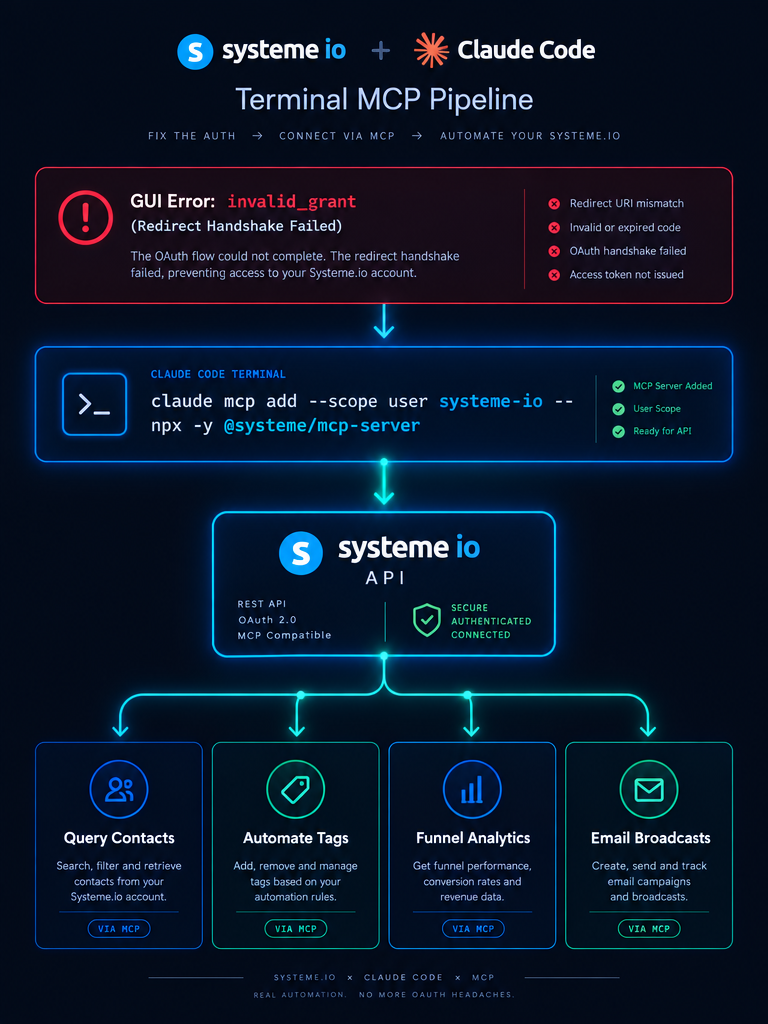
Architecture breakdown: Bypassing the broken GUI OAuth redirect via direct Claude Code stdio transport.
Notice how the architecture splits cleanly between authentication and execution. The broken web redirect is eliminated entirely because Claude Code spawns the server as a local child process, passing your secret key through environment headers directly to the API endpoint.
Step 3: Verify Your Tool Registry in Claude Code
After running the registration command, verifying that your tools are active takes just a few seconds.
Method 1: Check from Standard Terminal
Run the list command in your terminal:
claude mcp list
You should see systeme-io listed under user-scoped servers with an active status indicator.
Method 2: Check Inside an Active Claude Session
Launch Claude Code by typing:
claude
Once inside the interactive prompt, type the slash command:
/mcp
Claude Code will display an overview table of all registered servers. You should see systeme-io with 5 active tools exposed:
search_contacts: Find leads and customers by email, tag, creation date, or custom attributes.add_contact_tag/remove_contact_tag: Dynamically manage user segmentation and course cohorts.list_funnels&get_funnel_steps: Inspect live landing pages, checkout steps, and conversion metrics.get_newsletter_stats: Query open rates, delivery counts, and click performance on recent broadcasts.manage_course_enrolments: Grant or revoke student access to training courses and modules.
Claude Code vs Claude Desktop: Choosing the Right Environment
Both Claude environments support the Model Context Protocol, but they cater to very different operational needs:
| Feature / Capability | Claude Desktop (GUI) | Claude Code (Terminal CLI) |
|---|---|---|
| Interface | Graphical desktop window | Terminal command line (CLI) |
| Setup Method | Manual JSON editing (claude_desktop_config.json) |
Single CLI command (claude mcp add) |
| Scope Options | Local application only | Project-level or global User-level (--scope) |
| Scriptability | Chat conversation only | Bash / PowerShell scripts, cron jobs, CI/CD |
| Tool Inspection | Bottom-right hammer icon | /mcp interactive slash command |
| Ideal User | Non-technical business owners & writers | Developers, sysadmins, & technical marketers |
If you primarily draft marketing copy and brainstorm offers, Claude Desktop is comfortable and intuitive. But if you want to write automated scripts that audit your funnels every Monday morning, Claude Code in the terminal is vastly superior.
5 Practical Terminal Workflows for Marketing Automation
Now that your bridge is live, what can you actually do with it? Here are five real-world commands and prompts you can execute inside Claude Code today:
1. Instant Lead Acquisition Audits
Instead of logging into the dashboard and applying five different filter dropdowns, prompt Claude Code:
“Query my Systeme io contacts. How many new leads opted into my list over the past 7 days, and what are the top 3 tags applied to them?”
Claude Code executes the search_contacts tool, tallies the date ranges, groups the tags, and outputs an organized terminal table.
2. Funnel Conversion Health Checks
When running paid traffic, detecting a drop-off between an opt-in page and a thank-you page is critical. Prompt:
“Inspect my Lead Generation Funnel. Calculate the conversion rate between Step 1 and Step 2 over the last 14 days and let me know if conversions dropped below 20%.”
Claude pulls the raw visitor telemetry, computes the percentages, and flags any bottlenecks.
3. Automated Customer Tag Reconciliations
If you sell training programs and want to verify that all recent buyers received their access tags, ask:
“Check recent orders for my Masterclass product. Verify that each buyer has the ‘Active Student’ tag applied. If any contact is missing the tag, apply it now.”
Claude queries the database, detects any untagged purchasers, and presents a list of updates for your review.
4. Drafting and Staging Email Broadcasts
Writing newsletters in a Markdown editor and then copying them into a web form is clunky. With Claude Code, you can prompt:
“Draft a 300-word broadcast announcing our weekend workshop based on notes.txt in this folder, and stage it as a draft newsletter in my Systeme io account.”
Claude writes the email, formats the subject line, and stages the draft directly inside your newsletter queue.
5. Multi-System Cross-Referencing
Because Claude Code can access both your local computer files and your Systeme io account simultaneously, you can combine datasets effortlessly:
“Compare the customer email list in local file leads.csv against my live Systeme io contacts. Find any email addresses in the CSV that are not currently in my account, and tag them as ‘Import Candidate’.”
Human-in-the-Loop Security: Managing Tool Confirmations
Giving an AI model access to your customer records naturally raises questions about safety and data integrity. Anthropic built Claude Code with strict security boundaries:
- Read-Only Telemetry: Commands that only read data (such as searching contacts or reading funnel analytics) can run automatically without disrupting your flow.
- Mutations & Destructive Actions: Whenever Claude attempts an action that modifies your account—such as deleting contacts, changing funnel pricing, or staging an email broadcast—Claude Code halts and displays a clear terminal confirmation prompt:
Allow systeme-io to execute tool "add_contact_tag" with arguments:
  email: "[email protected]"
  tag: "VIP Buyer"
[y] Yes  [n] No  [a] Always allow for this session
You always remain in total command. The AI handles the data extraction and payload formatting, but you retain executive control over every state change.
Troubleshooting Common Setup Issues
If you encounter unexpected behavior during setup, review these common fixes:
1. “Command failed: npx not found”
Claude Code requires Node.js to execute npx. Ensure Node.js (version 18 or higher) is installed on your computer and added to your system environment PATH. You can verify this by running node -v in your terminal.
2. “Authentication error: 401 Unauthorized”
This indicates that your secret MCP key was either copied incorrectly or has expired. Return to your Systeme io dashboard under Settings > Public API Keys, revoke the expired token, generate a fresh key, and re-run the claude mcp add command.
3. “Key limit reached (Maximum 2 active keys)”
Systeme io strictly limits users to 2 active keys simultaneously. If your key creation fails, delete an unused legacy key from your dashboard before creating a replacement.
Summary & What to Explore Next
Connecting Systeme io to Claude Code eliminates the daily drag of dashboard navigation. By stepping around the flawed web redirect and registering the official server through claude mcp add, you unlock a high-speed terminal interface that turns your marketing operations into a natural language conversation.
To continue building your business automation skills, explore our structured modules on systeme io course workflows and our dedicated systeme io mcp technical guides.