
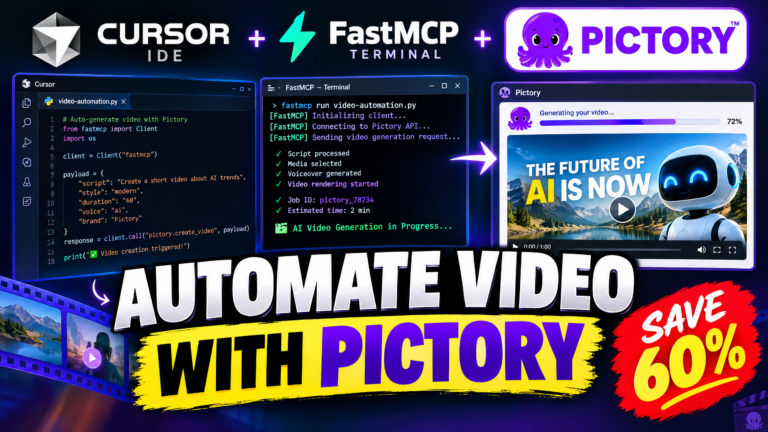
For the past several months, I have been testing a modern way to create video content: What if you never had to open a traditional video editor, drag clips across a heavy timeline, or manually align audio tracks ever again?
Instead, what if you could open your terminal, talk directly to Claude Code or Codex, and say: “Read my latest 800-word article, break it into eight visual scenes, match stock B-roll for each sentence, and render a high-definition 1080p video with an AI presenter avatar”—and have the finished MP4 delivered to your screen in minutes?
That is exactly what the Pictory AI MCP server enables. By connecting AI coding agents to our open-source Pictory MCP Server on GitHub, you turn the official Pictory API into native tools that your AI assistant can control with simple plain-English instructions. Instead of manually assembling video assets, you let the Pictory AI MCP execute API requests directly from your coding terminal.
In this comprehensive guide, I will walk you through the full architecture, show you how to configure Claude Code, Codex, and Cursor IDE, break down all 5 master MCP tools and their endpoints, and share the exact workflow I use to automate high-converting videos while saving ~60% on subscription costs with the verified pictory coupon code.
The Problem: Why Web Dashboards Fail Compared to the Pictory API
If you create content for YouTube, TikTok, or client campaigns, you already know where the real friction lies. The bottleneck is almost never writing the idea. The bottleneck is the mechanical busywork:
- Searching stock libraries for 15 different clips that match your sentences.
- Trimming 3-second gaps and aligning background music volume so it doesn’t drown out speech.
- Slicing long podcasts into vertical 9:16 clips and animating karaoke-style subtitles word by word.
- Waiting on local machines to render video files that consume all your RAM and CPU.
Most web dashboards attempt to solve this with browser interfaces. But dashboards still require hundreds of clicks, constant dragging, and tab switching.
Model Context Protocol (MCP) eliminates the dashboard entirely.
Because Claude Code and Codex operate directly on your local files, your AI assistant can read a markdown file on your hard drive, plan the scene pacing, call the Pictory API via the Pictory AI MCP bridge, and hand you back a finished, hosted MP4 without leaving your terminal.
If you want to see this autonomous pipeline in action, watch my complete 40-second video walkthrough below:
FastMCP Architecture: How Claude Code & Codex Connect to the Pictory API via Pictory AI MCP
The bridge between your AI assistant and the Pictory API is built on FastMCP, Anthropic’s official high-speed Python framework. The Pictory AI MCP acts as an intelligent translator between the Model Context Protocol and the underlying Pictory API endpoints.
Here is how the data flows from your natural-language request to the final cloud render:
+-------------------------------------------------------------------------+
|                  AI CODING AGENT / DEVELOPER CLIENT                     |
|           (Claude Code CLI, OpenAI Codex, Cursor IDE, Windsurf)         |
+-------------------------------------------------------------------------+
                                    |
                                    | (JSON-RPC stdio communication)
                                    v
+-------------------------------------------------------------------------+
|                       PICTORY MCP SERVER ENGINE                         |
|             (FastMCP Server running locally via Python / uvx)           |
+-------------------------------------------------------------------------+
                                    |
                                    | (Secure HTTPS REST API Calls)
                                    v
+-------------------------------------------------------------------------+
|                         PICTORY CLOUD API V2                            |
|    - Storyblocks & Getty Images Engine (Millions of Stock Assets)       |
|    - ElevenLabs & Azure Neural TTS (300+ Lifelike Voices)               |
|    - HeyGen Digital Human Avatars (Synchronized Lip-Sync)               |
|    - Cloud GPU Distributed Render Cluster (1080p / 4K MP4 Output)       |
|    - Direct Export Connectors (Amazon AWS S3 & Vimeo Showcases)         |
+-------------------------------------------------------------------------+
- Natural Language Input: You give Claude Code a task: “Take
script.md, select an energetic electronic background track, and render a 16:9 video.” - Local Protocol Bridge: Claude Code translates your request into a structured JSON-RPC call sent over standard input/output (
stdio) topictory-mcp. - Pictory API Execution: The MCP server signs the request using your
PICTORY_API_KEYand dispatches it to Pictory’s cloud endpoints. - Cloud Rendering & Status: Pictory’s cloud cluster handles the heavy GPU rendering, matches licensed footage, and returns real-time progress percentages until the final MP4 URL is ready.
Step-by-Step Setup: How to Configure Pictory AI MCP with Your Pictory API Key
Setting up the server takes less than two minutes because the package runs natively via uvx (the ultra-fast Python package runner from Astral). You do not need to compile code or manage virtual environments manually.
Step 1: Obtain Your Pictory API Key
To connect to the API, you need an active Pictory account with API access enabled:
- Sign in to your dashboard at app.pictory.ai.
- Go to Settings → API Access (or visit
https://app.pictory.ai/api-access). - Generate and copy your API Key (
pictai_...).
[!TIP]
Community Discount Stack (~60% Off): If you are signing up or upgrading, you can combine Pictory’s 40% annual plan discount with verified partner coupon codeACTIVATECODEfor an extra 20% recurring lifetime discount. That saves up to $94 every year. Review our step-by-step pictory coupon code checkout guide to see the exact stacking math.
Step 2: Configure Pictory AI MCP in Claude Code (CLI)
For developers using Anthropic’s official terminal agent Claude Code, add the MCP server using a single command:
claude mcp add pictory -- uvx pictory-mcp
When prompted, set your environment variable:
export PICTORY_API_KEY="pictai_your_actual_key_here"
Alternatively, you can edit your global claude.json configuration file:
{
  "mcpServers": {
    "pictory": {
      "command": "uvx",
      "args": ["pictory-mcp"],
      "env": {
        "PICTORY_API_KEY": "pictai_your_actual_key_here"
      }
    }
  }
}
Step 3: Configure Pictory AI MCP in Claude Desktop
If you prefer the visual Claude Desktop app, edit your configuration file:
– Windows: %APPDATA%\Claude\claude_desktop_config.json
– macOS: ~/Library/Application Support/Claude/claude_desktop_config.json
Add the pictory entry inside the mcpServers block:
{
  "mcpServers": {
    "pictory": {
      "command": "uvx",
      "args": ["pictory-mcp"],
      "env": {
        "PICTORY_API_KEY": "pictai_your_actual_key_here"
      }
    }
  }
}
Restart Claude Desktop. You will immediately see a hammer icon appear in the chat interface showing all 5 Pictory tools active and ready.
Step 4: Configure Pictory AI MCP in Cursor IDE & Codex
If you build applications in Cursor IDE:
- Open Settings → Features → MCP Servers.
- Click + Add New MCP Server.
- Fill in the three fields:
– Name:pictory
– Type:command
– Command:uvx pictory-mcp - In the environment variable section, add:
PICTORY_API_KEY=pictai_your_actual_key_here
Your Cursor Composer agent can now create, inspect, and patch video projects directly alongside your application code.

Pictory AI MCP Master Reference: All 5 Tools & Endpoints Explained
The Pictory AI MCP consolidates over 40 individual Pictory API endpoints into 5 intuitive master tools. Here is the complete breakdown of every tool, action, and capability available to your AI assistant:
1. pictory_video (Pictory API Cloud Video Engine & Rendering)
This is the primary workhorse tool in the Pictory AI MCP, used to interact with the core Pictory API video rendering endpoints.
| Action Name | What It Does | Why It Matters |
|---|---|---|
render_storyboard |
Submits a multi-scene JSON payload to cloud renderers | Turns raw text, scenes, voiceovers, and music into a finished 1080p MP4. |
create_preview |
Generates full storyboard scene cards with zero render cost | Zero-credit check! Inspect footage choices and timing without spending monthly minutes. |
render_from_preview |
Promotes an approved preview job into a full cloud render | Eliminates redundant processing once you are satisfied with scene thumbnails. |
render_with_modifications |
Renders a video with custom scene asset overrides | Swap a single background clip or title font on the fly. |
update_elements |
Modifies individual visual text blocks and subtitles | Allows precise typography tweaks without re-uploading media. |
render_project |
Triggers a fresh render of an existing web dashboard project | Keeps projects created in the browser fully renderable via code. |
poll_job |
Checks the percentage progress of a running render | Returns in-progress (with percentage) or completed with download URL. |
2. pictory_transcribe (Audio Extraction & Viral Shorts)
Powered by the Pictory API speech-to-text and NLP models, this Pictory AI MCP tool handles long-form transcription and viral highlight extraction.
| Action Name | What It Does | Why It Matters |
|---|---|---|
transcribe_video |
Extracts audio from a video URL and produces timestamped text | Generates word-level transcripts with speaker separation. |
poll_transcription |
Monitors the progress of an active transcription job | Alerts your agent when transcript analysis is complete. |
automatic_highlights |
Uses AI sentiment and engagement scoring to find viral hooks | Automatically detects the top 30-to-60 second clips in a 1-hour recording. |
custom_highlights |
Extracts specific time ranges based on keyword filters | Tell Claude: “Extract every clip where the guest mentions pricing.” |
get_subtitles |
Downloads timed SRT or VTT subtitle files | Export professional captions for YouTube or web video players. |
3. pictory_assets (Stock Footage, Avatars & Voices)
Gives your coding agent direct programmatic access to the Pictory API media catalog of over 10 million licensed Storyblocks and Getty Images assets.
| Action Name | What It Does | Why It Matters |
|---|---|---|
search_media |
Searches Storyblocks and Getty Images catalogs by keyword | Inspect B-roll preview thumbnails before adding them to scenes. |
search_music |
Searches thousands of licensed background music tracks | Match audio tempo and rhythm to the energy of your video. |
list_music_genres |
Returns available music categories (Cinematic, Corporate, Lo-Fi) | Filter music to suit corporate presentations or dynamic tutorials. |
list_music_moods |
Returns emotional moods (Inspiring, Dark, Energetic, Calm) | Ensure soundtrack matches the storytelling arc. |
list_avatars |
Lists photorealistic digital human avatars | Pick presenter models like Brandon, Emma, or Alex with custom framing. |
list_voiceovers |
Lists 300+ neural voices across 20+ languages | Filter ElevenLabs and Azure neural voices by accent and gender. |
list_styles |
Lists animated subtitle presets and karaoke templates | Apply high-converting typography styles seen on top social channels. |
list_fonts |
Lists supported brand typography | Match your company font guidelines automatically. |
generate_ai_image |
Creates bespoke AI background imagery via prompt | Generate custom graphics when stock footage is too generic. |
generate_ai_video |
Generates generative AI video sequences | Produce abstract tech visuals and futuristic cutscenes. |
get_signed_url |
Generates secure pre-signed upload URLs | Upload your own proprietary B-roll, logos, and voice files. |
4. pictory_projects (Web Dashboard & Template Sync)
Ensures that every project created via code remains 100% synchronized with your official web dashboard at app.pictory.ai.
| Action Name | What It Does | Why It Matters |
|---|---|---|
list_projects |
Lists all active and archived projects on your account | Audit past campaigns and retrieve project_id references. |
get_project |
Fetches the full JSON storyboard data of any project | Inspect scene text, timings, and selected assets programmatically. |
update_project |
Renames projects or updates top-level metadata | Keep project archives organized by client or topic. |
delete_project |
Deletes outdated projects to keep workspace clean | Clean up completed client deliverables. |
list_templates |
Lists saved brand templates from your web dashboard | Apply preset brand colors, logos, and intro stings in 1 click. |
get_template |
Inspects font sizes, margin rules, and layout tokens | Ensure programmatic videos strictly obey brand style guides. |
create_template |
Saves a new custom template via JSON | Programmatically deploy standardized templates for a team. |
update_template |
Modifies existing template rules | Update corporate logos or brand colors globally across all future videos. |
delete_template |
Removes deprecated brand templates | Prevent team members from using retired design schemes. |
update_scene |
Surgically edits a single scene inside a project | Replace a single clip without having to reconstruct the entire storyboard. |
5. pictory_integrations (Cloud Storage & Quota Management)
Monitors your Pictory API subscription quotas, credits, and direct publishing channels via the Pictory AI MCP.
| Action Name | What It Does | Why It Matters |
|---|---|---|
get_quota |
Returns remaining video render minutes and active plan limits | Never get blindsided by unexpected quota exhaustion. |
get_aicredits_usage |
Checks avatar generation and generative AI credit balances | Monitor specialized credit usage across team members. |
list_vimeo_connections |
Lists connected Vimeo showcase channels | Automate direct video publishing for client review portals. |
create_vimeo_connection |
Authenticates a new Vimeo channel | Link video export directly to private video hosting. |
list_aws_connections |
Lists configured Amazon Web Services S3 buckets | Enable enterprise-grade cloud storage pipelines. |
create_aws_connection |
Connects an AWS S3 bucket for automated MP4 delivery | High-volume publishers can route renders directly to Amazon S3. |
clean_job |
Deletes temporary rendering cache and expired job data | Keeps your cloud storage organized and free of temporary artifacts. |
5 Practical Blueprints: How to Use Pictory API to Automate Video Production
To show you how these tools come together in practice, here are five real-world workflows you can run directly inside Claude Code or Codex:
Blueprint 1: Convert Blog URLs into 1080p Videos with AI Presenters
Give Claude a public article URL. The agent scrapes the page, extracts the narrative points, matches B-roll, and adds a talking-head presenter:
{
  "videoName": "Cloud_Migration_Tutorial",
  "aspectRatio": "16:9",
  "avatar": {
    "avatarId": "Brandon_expressive2_public",
    "position": "bottom-right",
    "width": "25%",
    "borderRadius": "100"
  },
  "voiceOver": {
    "enabled": true,
    "aiVoices": [{"speaker": "Martin", "speed": 100, "volume": 100}]
  },
  "backgroundMusic": {
    "enabled": true,
    "autoMusic": true,
    "volume": 0.12
  },
  "scenes": [
    {
      "blogUrl": "https://softreviewed.com/how-to-use-pictory-api-with-pictory-ai-mcp/"
    }
  ]
}
- Outcome: Your written article becomes an engaging video showcase with a professional digital presenter in under three minutes.
Blueprint 2: Repurpose Long Podcasts into 9:16 Viral Shorts via Pictory API
Upload a 45-minute MP4 file or paste a public video URL. Claude calls pictory_transcribe:
- It transcribes the conversation with word-level accuracy.
- It runs engagement scoring to isolate the most dramatic 45-second soundbite.
- It crops the video to vertical 9:16 format, centers the speaker, and burns in high-contrast karaoke captions.
- Outcome: 5 to 10 ready-to-publish TikToks, Instagram Reels, and YouTube Shorts extracted from a single recording session without manual clipping.
Blueprint 3: Zero-Credit Storyboard Preview Safeguard in Pictory API
One of the biggest concerns creators have with video APIs is burning credits on bad footage. The Pictory MCP solves this through its Zero-Cost Preview Protocol:
Step 1: Claude calls pictory_video ("create_preview") -> 0 Credits Consumed
Step 2: Inspect returned scene thumbnail URLs & sentence timings
Step 3: If scene 3 has the wrong B-roll, call pictory_projects ("update_scene")
Step 4: Claude calls pictory_video ("render_from_preview") -> 1080p Cloud Render
By verifying the scene thumbnails beforehand, you never waste a single minute of your subscription quota on a video that isn’t already 100% approved.
Blueprint 4: Automate Faceless YouTube Channels via Claude Code & Pictory API
You can instruct Claude Code to automate an entire YouTube production routine:
- Scriptwriting: Claude writes a punchy 5-minute educational script on tech news.
- Music Curation: Claude calls
pictory_assets(action="search_music",mood="Inspiring") and selects a licensed track. - B-Roll Selection: Claude queries
pictory_assets(action="search_media") to find verified 1080p clips for each key phrase. - Rendering: Claude calls
render_storyboardwith 16:9 framing and high-contrast subtitles.
- Outcome: Complete hands-free production for technical tutorials, documentation videos, and news recaps.
Blueprint 5: Enterprise AWS S3 Storage Synchronization via Pictory API
For agencies managing multiple clients, you don’t want completed videos sitting on local desktop drives.
Using pictory_integrations (create_aws_connection), every rendered video automatically uploads to an Amazon S3 bucket with secure access keys. Your deployment scripts can immediately serve the video to client portals or trigger CDN caching automatically.
Pictory API Cost Comparison: How to Save ~60% with ACTIVATECODE
Pictory is available under both monthly and annual plans. For developers and creators building high-volume pipelines, here is the exact pricing breakdown and how you can maximize your savings:
| Plan Tier | Standard Monthly Price | Annual Billing Rate (40% Off) | With Coupon ACTIVATECODE (Extra 20% Off) |
Total Effective Savings |
|---|---|---|---|---|
| Starter | $29 / month | $19 / month | ~$15.20 / month | ~48% Savings |
| Professional | $59 / month | $39 / month | ~$31.20 / month | ~57% Savings |
| Teams | $119 / month | $99 / month | ~$79.20 / month | ~60% Savings |
By selecting annual billing at checkout and entering coupon code ACTIVATECODE, the 20% recurring discount applies directly to the already-discounted annual price, giving you the lowest possible entry point for programmatic AI video generation.
Pictory API & Pictory AI MCP: Frequently Asked Questions
Can I run Pictory AI MCP with local models or OpenAI Codex?
Yes. Model Context Protocol is model-agnostic. While Anthropic’s Claude Code and Claude Desktop offer native support, any client supporting JSON-RPC stdio (including Cursor running GPT-4o, Codex, or Windsurf) can interact with this server.
Does generating storyboard previews in Pictory API consume render minutes?
No. Storyboard previews, scene text editing, and thumbnail inspections consume zero credits. Monthly rendering minutes are only deducted when you trigger a final MP4 export via render_storyboard or render_from_preview.
Are projects created via Pictory AI MCP accessible in the web app?
Yes. Every project created through the MCP server generates a real project_id. You can open app.pictory.ai in your browser at any time to visually edit or preview the project alongside the API.
What video resolutions are supported by the Pictory API?
Pictory supports vertical 9:16 (Shorts/Reels/TikTok), horizontal 16:9 (YouTube/Web), and square 1:1 (LinkedIn/Instagram) in full 1080p high definition, with 4K export available on enterprise tiers.
Final Thoughts: Getting Started with Pictory API and Pictory AI MCP
Video production is undergoing the same transition that software development experienced with infrastructure-as-code. Instead of manually clicking buttons inside proprietary graphical user interfaces, you can now define your video structure programmatically and let AI coding assistants orchestrate the entire pipeline.
To start building your own autonomous pipeline today:
1. Clone or inspect the open-source code at github.com/softreviewed/pictory-coupon-code-mcp.
2. Connect the server to Claude Code via claude mcp add pictory -- uvx pictory-mcp.
3. Unlock the lifetime 20% discount on your API plan using code ACTIVATECODE via our pictory coupon code activation guide.