
If you want to make Antigravity control your signed-in browser without tripping Google login blocks or risking your personal accounts, you need a setup that bridges Antigravity and a real Chrome session. Antigravity’s built-in side-panel browser runs in its own isolated container (keeping its own cookies separate from your desktop Chrome) and pauses whenever a site asks you to sign in, while the default Chrome DevTools MCP server opens a blank automated browser where Google often rejects logins.
I ran into this exact wall when trying to run daily tasks across YouTube Studio, WordPress, and Google Search Console. Instead of logging in manually every morning or exposing my everyday Chrome profile, I paired a separate Chrome profile on port 9222 with --browserUrl and locked the shortcut as Read-Only so background updates stop breaking it.
In this guide, I break down the two browser engines inside the Antigravity App (its native built-in browser versus Chrome DevTools MCP from Customizations), explain why default MCP sessions block Google logins, walk through the exact Windows 11 port 9222 fix I verified live to make Antigravity control your signed-in browser, and cover every common failure and fix. If basic browsing is failing on blank screens right out of the box, start with my Antigravity browser not working guide first, then apply this permanent port 9222 setup below.
How Does the Antigravity App Control a Browser? (2 Core Engines)
The desktop Antigravity App gives you two real browser engines: its native built-in side-panel browser (v2.30.0+) and Chrome DevTools MCP added from Customizations, with Port 9222 + --browserUrl serving as the setup fix to make Antigravity control your signed-in browser permanently. Here is how both engines and the Port 9222 signed-in fix compare side by side.
| Browser Setup | How Chrome Opens | Keeps Your Sign-Ins? | Best Used For | Main Catch / Limit |
|---|---|---|---|---|
| 1. Built-In Side-Panel Browser Native Antigravity App (v2.30.0+) |
Runs inside the App side panel with zero external Chrome setup | Isolated container per Google account (pause-and-resume sign-in) | Localhost UI playtesting, parallel pricing & docs audits | Personal Google plans only; blocks agent clicks on login & checkout screens |
| 2. Chrome DevTools MCP (Default) Added via Customizations |
Spawns its own automated Chrome cache (chrome-profile) |
Starts logged out; separate from your real Chrome | Lighthouse audits, console traces, DOM scripts on public pages | Google often blocks login ("browser or app may not be secure") |
| 3. Chrome DevTools MCP + Port 9222 --browserUrl Fix (Tested Live) |
Opens a dedicated Chrome profile pinned to your taskbar | Yes, stays signed into your chosen work accounts permanently | Daily AI workflows, YouTube Studio, WordPress, Search Console | Must launch taskbar Chrome first before calling MCP tools |
Option 1: How Antigravity's Native Built-In Browser Works
The native built-in browser in the Antigravity 2.0 desktop App (v2.30.0+) renders live web pages inside your right side panel with zero external Chrome install needed. According to the google antigravity docs (IDE Browser & App release notes), Google introduced it as a manual viewer in v2.28.0 and unlocked autonomous frontend testing across your codebase in v2.30.0 for personal Google Accounts on Free, Plus, Google AI Pro, and Google AI Ultra plans.
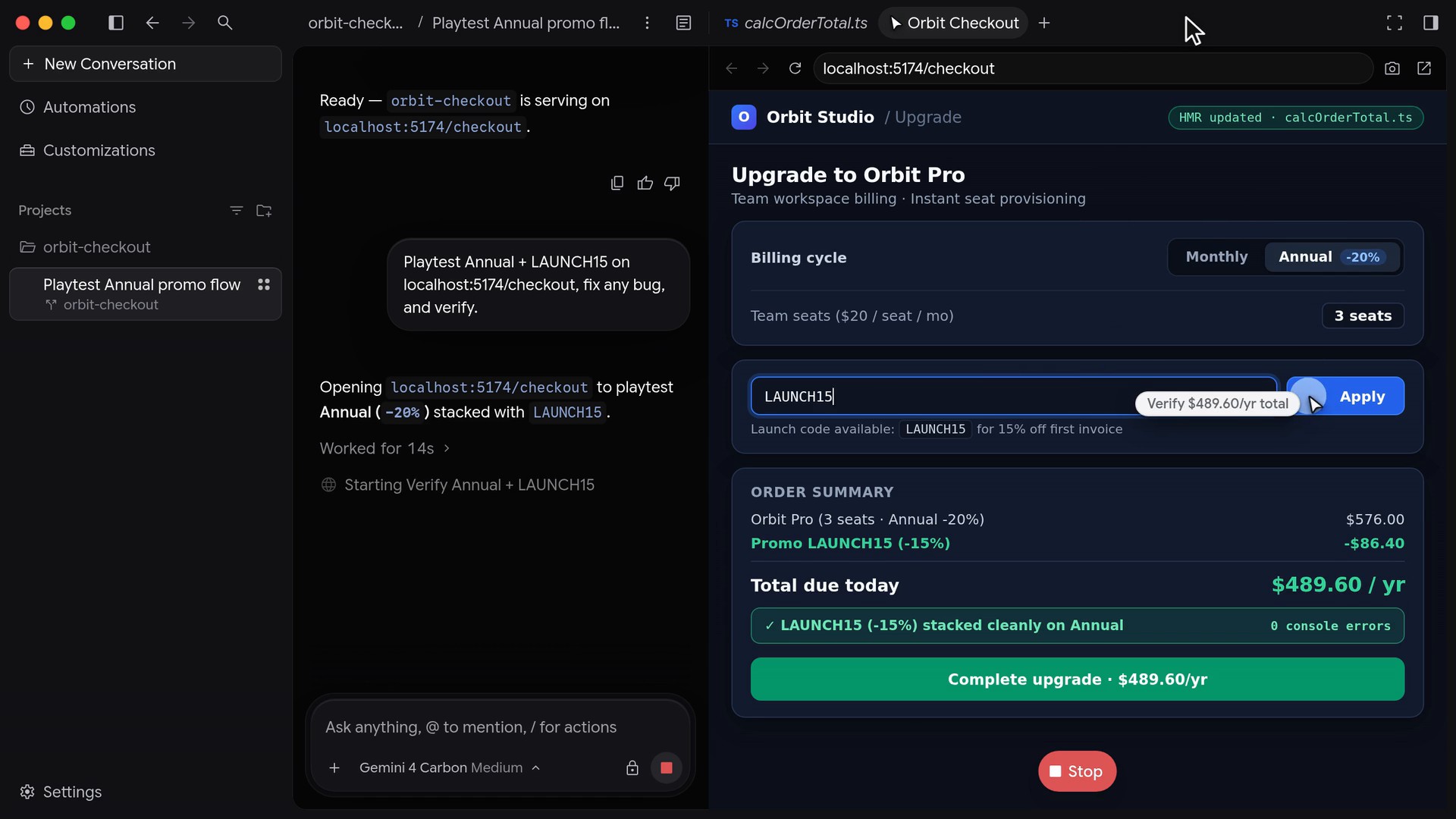
Official Antigravity App release view: the browser subagent tests a localhost page inside the side panel with a live animated cursor and red Stop takeover control.
Inside daily agent sessions, the Antigravity App browser behaves very differently from background scripts:
- Live Side-Panel Cursor & Status Pill: As the browser subagent works, the tab icon flips to a pointer arrow and an animated cursor highlights clicks and scrolls alongside status updates like
Thinking.... - Instant Human Takeover: Clicking the red Stop button at the bottom of the side panel pauses automation immediately so you can type credentials or handle manual steps.
- Parallel Browser Tabs: When inspecting pricing, docs, and changelogs at once, Antigravity can launch multiple isolated browser subagent tabs simultaneously without blocking your main prompt window.
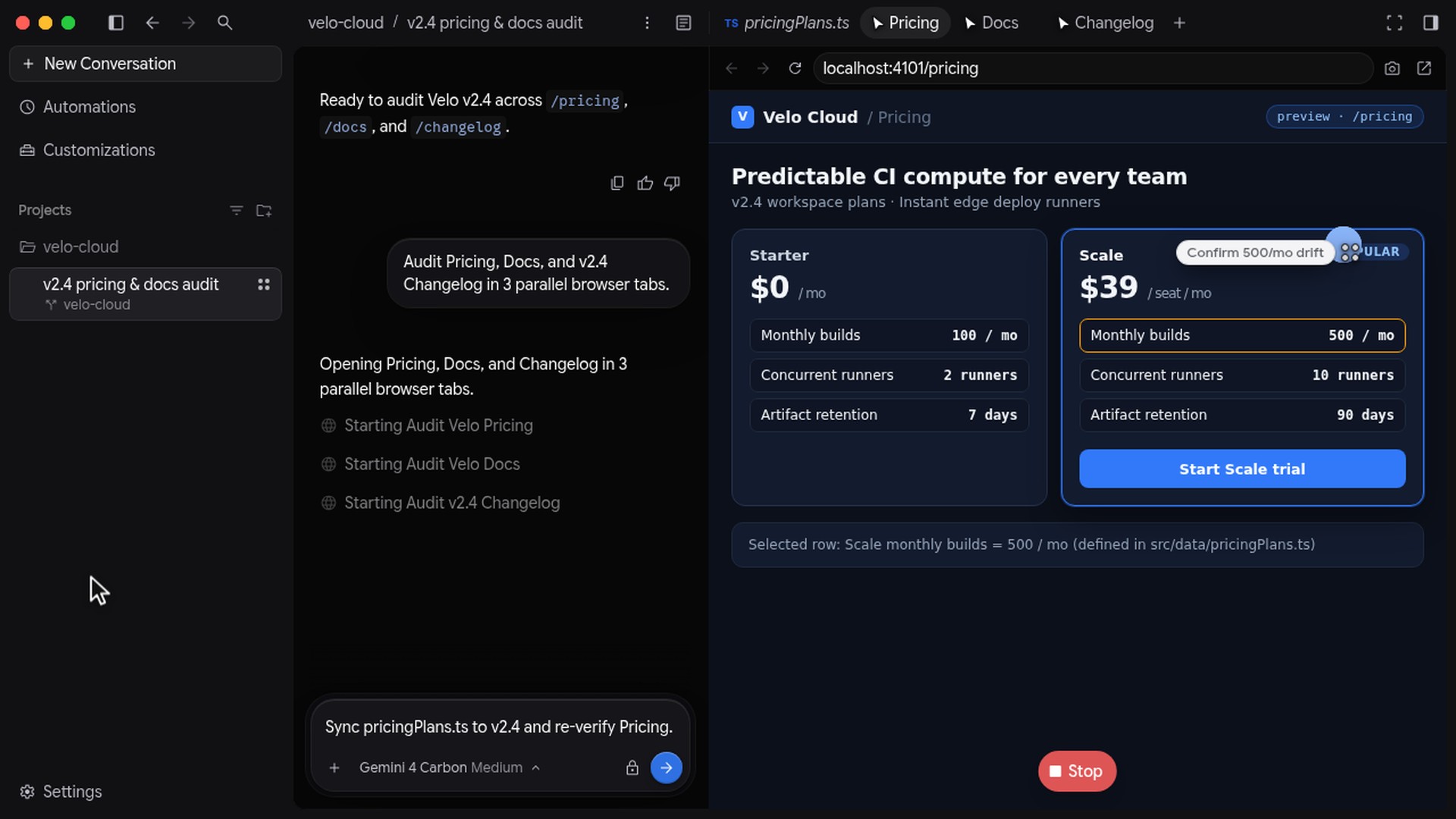
Official Antigravity parallel tabs view: separate browser subagents audit Pricing, Docs, and Changelog pages concurrently.
When you open Settings → Browser, you can decide whether clicked links launch in the Built-in Browser or your external browser, assign a downloads folder, clear visited URLs and autocomplete history, and manage Browser Actuation Rules (allowing or denying specific URLs for your AI agents).
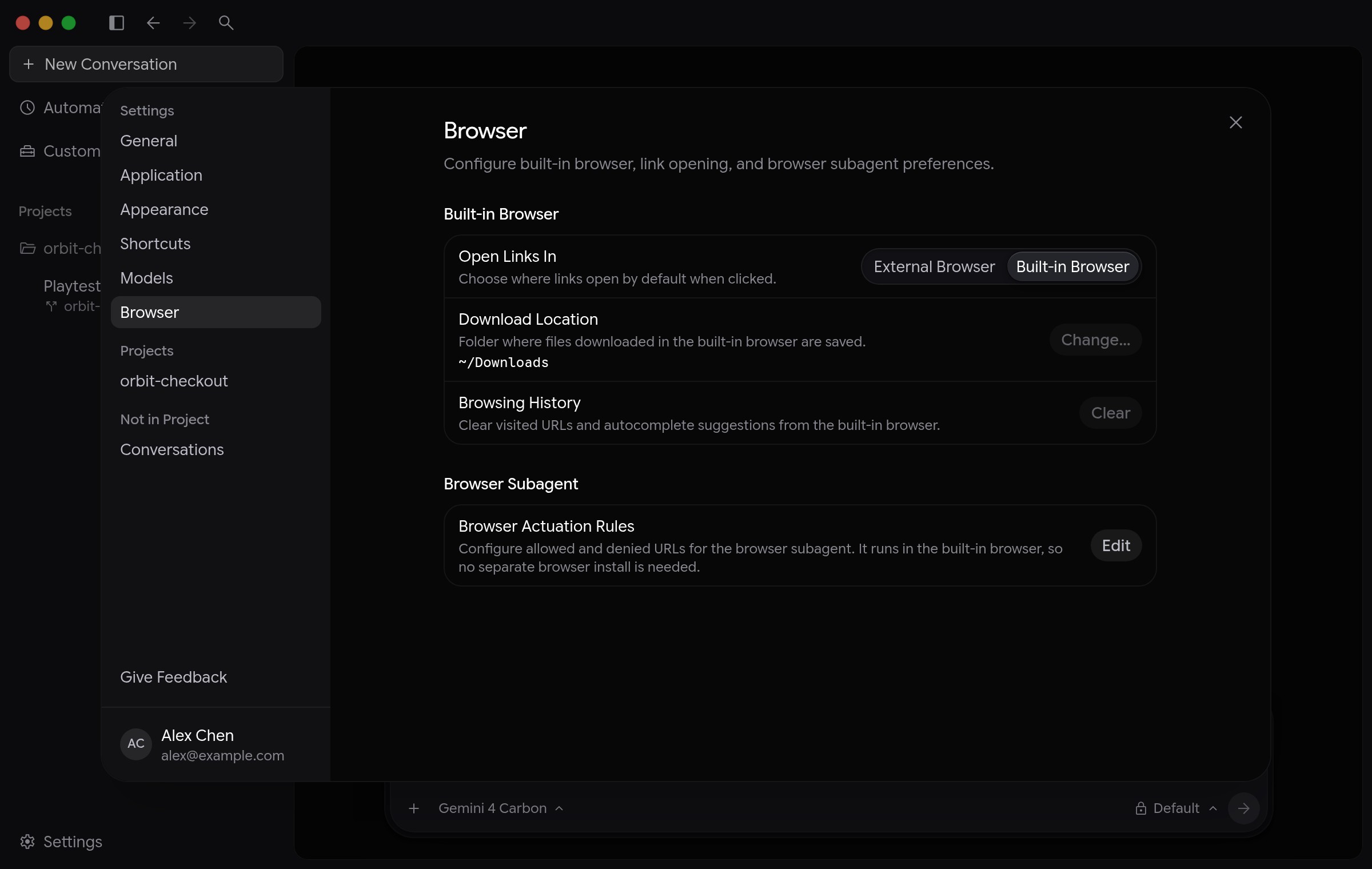
Official Antigravity Browser Settings UI: controls link targets, download paths, history clearing, and Browser Actuation Rules.
Pros and Cons of Antigravity's Native Built-In Browser
Built-in side-panel browsing requires zero setup on personal App accounts, but lacks Chrome extensions, IDE availability, and deep DevTools debugging.
- Pros: Zero Chrome setup needed, runs parallel research tabs cleanly, enforces safety guardrails on
accounts.google.comand payment checkouts, and supports pause-and-resume sign-in handoffs. - Cons: Only available in the Antigravity desktop App for personal Google Accounts (unavailable in Antigravity IDE, remote SSH workspaces, or business/enterprise plans), cannot access your desktop Chrome extensions, and omits full DevTools features such as
evaluate_script, heap snapshots, and Lighthouse traces.
Option 2: Adding Chrome DevTools MCP Server From Customizations (Why Google Blocks Login)
Installing the Chrome DevTools MCP server (chrome-devtools-mcp) from Antigravity's Customizations menu spawns an isolated automated Chrome instance designed for debugging rather than persistent personal logins. It works across the Antigravity App, Antigravity IDE, and Antigravity CLI, unlocking DOM inspection, console logs, network request capture, performance traces, and JavaScript execution.
You install or inspect MCP tools inside Customizations → Installed → MCP Servers in the App, or click the … menu → MCP Servers → Manage MCP Servers → View raw config inside Antigravity IDE. Once enabled out of the box, two roadblocks stop signed-in workflows immediately:
- Blank Cache Directory: By default,
chrome-devtools-mcplaunches Chrome with its own separate profile folder (C:\Users\<you>\.cache\chrome-devtools-mcp\chrome-profileon Windows). None of your saved logins, extensions, or bookmarks carry over. - Automated WebDriver Authentication Blocks: When you try to log into Google inside that automated browser tab, Google authentication often rejects the sign-in with "This browser or app may not be secure". The official
chrome-devtools-mcpdocumentation explicitly warns that automated browser launches trigger login blocks on protected URLs and enterprise accounts.
To make Antigravity control your signed-in browser reliably, reverse the startup order: open a clean real Chrome profile manually with remote debugging on port 9222, sign in normally once, and instruct Chrome DevTools MCP to attach over --browserUrl. Once connected, you can pair your signed-in Chrome sessions with Google Antigravity dynamic workflows seamlessly. (Note: Google's chrome-devtools-mcp docs also describe an --autoConnect flag for Chrome 144+ via chrome://inspect, which requires remote debugging inside Chrome's default User Data folder and fails on isolated profiles; inside the Antigravity App, port 9222 with --browserUrl is the tested workflow below because it keeps your agent profile separate and skips permission popups.)
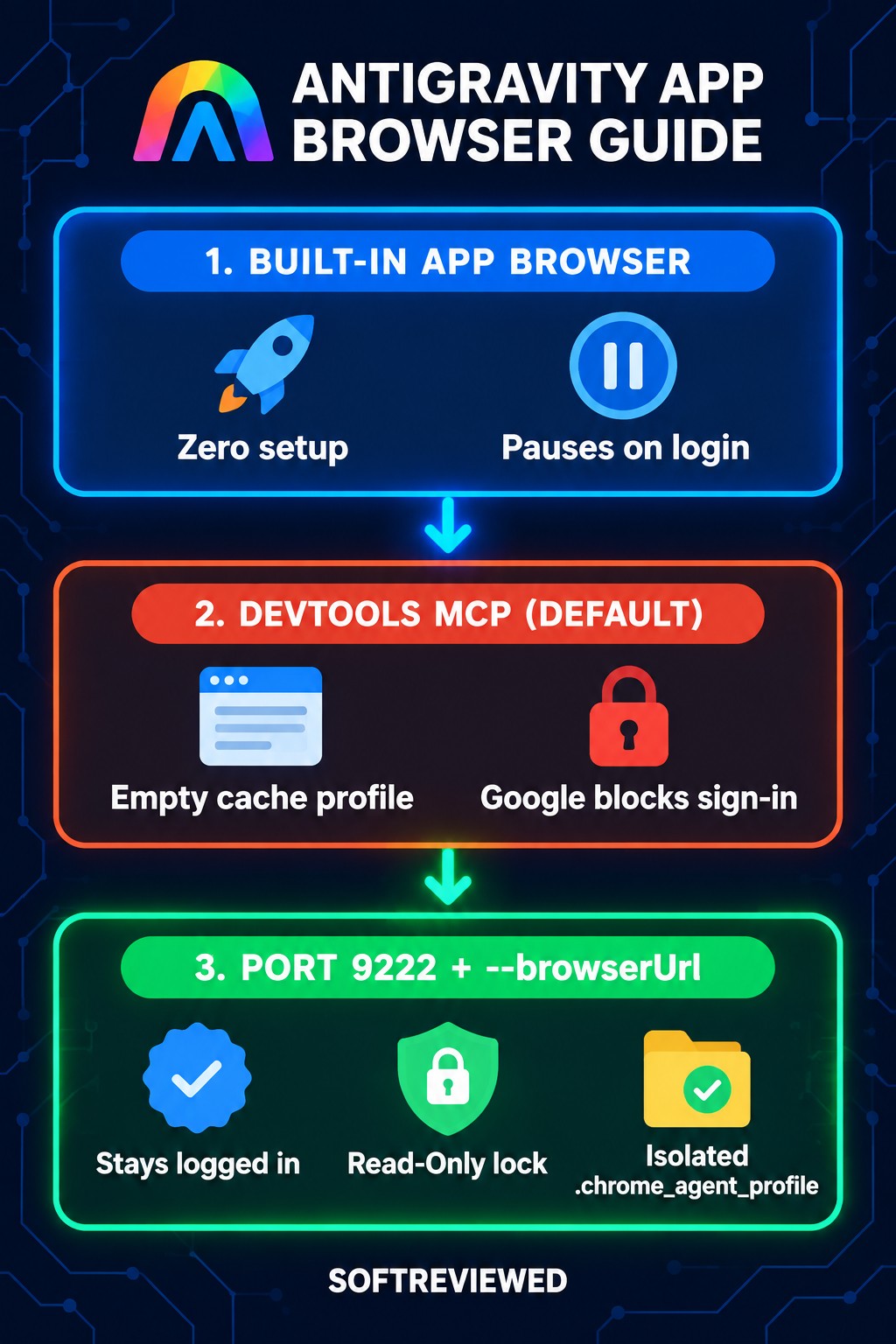
Visual Decision Guide: Comparing the Antigravity App's built-in browser, DevTools MCP default login blocks, and the isolated Port 9222 signed-in workflow.
How to Make Antigravity Control Your Signed-In Browser via Port 9222 (Step-by-Step)
The safest way to make Antigravity control your signed-in browser uses four steps: an isolated Chrome --user-data-dir folder (required by Chrome 136+), --remote-debugging-port=9222, a Read-Only taskbar shortcut, and --browserUrl http://127.0.0.1:9222 in mcp_config.json. I verified this exact workflow live on Windows 11 with Chrome 158 and chrome-devtools-mcp v0.23.0, connecting cleanly to open signed-in tabs on the first try.
.chrome_agent_profile) + Read-Only Taskbar Shortcut (:9222) → --browserUrl http://127.0.0.1:9222 in mcp_config.json.
Step 1: Isolate a Dedicated .chrome_agent_profile (Chrome 136+ Requirement)
Chrome 136 and newer deliberately ignore --remote-debugging-port if Chrome opens the default User Data folder, so a custom directory is mandatory. Pointing Chrome at a dedicated folder such as C:\Users\jovin\.chrome_agent_profile accomplishes two things simultaneously:
- Enables Port 9222 Cleanly: Because the directory is outside the default system profile path, Chrome opens
127.0.0.1:9222reliably on every launch. - Protects Personal Accounts: Only sign into work dashboards inside
.chrome_agent_profile(WordPress, YouTube Studio, Search Console), leaving banking and personal Gmail completely separate in your everyday Chrome profile.
Step 2: Configure Your Pinned Taskbar Chrome Shortcut on Windows 11
Quit every background Chrome process before editing your taskbar shortcut, because closing a window with the X button often leaves an old Chrome instance running in the system tray. Any new window you launch attaches to that old process and ignores your new port flags.
- Press
Ctrl + Shift + Qinside Chrome (or choose ⋮ → Exit) and verify no Chrome icon stays active in the Windows tray. - Right-click your pinned Chrome icon on the Windows 11 taskbar, right-click Google Chrome, and pick Properties.
- Replace the Target box on the Shortcut tab with this exact command (swapping
jovinfor your own Windows username), then click Apply and OK:
"C:\Program Files\Google\Chrome\Application\chrome.exe" --remote-debugging-port=9222 --user-data-dir="C:\Users\jovin\.chrome_agent_profile" --remote-allow-origins=*On macOS or Linux, launch Chrome from a shell alias using the same flags with --user-data-dir="$HOME/.chrome_agent_profile". Open Chrome from your shortcut and check chrome://version or visit http://127.0.0.1:9222/json/version to confirm webSocketDebuggerUrl appears.
Step 3: Lock the Shortcut as Read-Only So Chrome Updates Cannot Overwrite It
Marking the .lnk file as Read-Only prevents Google Chrome's background updater from rewriting your taskbar target and breaking port 9222. On my Windows PC, Chrome updates repeatedly stamped --source-shortcut-location=taskbar onto --remote-allow-origins=*, mutating it into --remote-allow-origins=*e-shortcut-location=taskbar until I locked the shortcut file itself.
- Press
Win + Rand open%APPDATA%\Microsoft\Internet Explorer\Quick Launch\User Pinned\TaskBar. - Right-click your Chrome shortcut (on my PC it was
Google Chrome (2).lnk) and open Properties. - Under the General tab, check Read-only, then click Apply and OK.
Step 4: Sign Into Your Work Accounts Normally Inside .chrome_agent_profile
Open Chrome from your locked taskbar shortcut and sign into your automation platforms once with zero WebDriver login blocks. Because this window runs as standard Chrome rather than Puppeteer-launched automation chrome, Google Account sign-ins pass normally and stay logged in across PC restarts. Having your own signed-in Chrome profile ready also helps when running multi-step Antigravity Orchestrator browser tasks across logged-in web dashboards.
Step 5: Configure --browserUrl in Antigravity mcp_config.json
Adding "--browserUrl", "http://127.0.0.1:9222" to mcp_config.json instructs Chrome DevTools MCP to attach to your signed-in taskbar Chrome instead of opening an empty browser. Edit your global config at ~/.gemini/config/mcp_config.json and any installed plugin config under ~/.gemini/config/plugins/chrome-devtools-plugin/mcp_config.json (plus ~/.gemini/antigravity/mcp_config.json if present).
{
  "mcpServers": {
    "chrome-devtools-mcp": {
      "command": "npx",
      "args": [
        "-y",
        "chrome-devtools-mcp@latest",
        "--browserUrl",
        "http://127.0.0.1:9222"
      ],
      "disabled": false
    }
  }
}{
"mcpServers": {
"chrome-devtools-mcp": {
"command": "node",
"args": [
"C:\\Users\\jovin\\MCP\\chrome-devtools-mcp\\build\\src\\bin\\chrome-devtools-mcp.js",
"--browserUrl",
"http://127.0.0.1:9222"
],
"disabled": false
}
}
}After saving mcp_config.json, restart the MCP server under Customizations → Installed → MCP Servers → ⋮ → Restart in Antigravity App (or run Developer: Reload Window in Antigravity IDE). In my live test right after reloading, list_pages saw all 6 open signed-in tabs and evaluate_script read the active page DOM immediately.
Pros and Cons When You Make Antigravity Control Your Signed-In Browser on Port 9222
Connecting Chrome DevTools MCP to a dedicated signed-in Chrome profile removes repetitive sign-ins and shares session cookies across MCP and Playwright scripts, while requiring Chrome to stay open from your taskbar shortcut.
| Pros (Why It Works So Well) | Cons (Trade-Offs to Expect) |
|---|---|
| Passes Strict Login Security: Sign-ins run inside a genuine Chrome session with zero WebDriver flags. | Chrome Must Be Open First: If taskbar Chrome is closed, DevTools MCP cannot launch one when --browserUrl is set. |
| Shared State Across Tools: Antigravity DevTools MCP and external Playwright CDP scripts share the same cookies and tabs. | External Link Routing: Clicking links in desktop apps opens your default personal profile unless the agent Chrome window is already active. |
Immediate Tab Access: Automations connect cleanly over port 9222 without waiting on confirmation dialogs. |
Full Profile Access on Port 9222: Local tools hitting port 9222 can read every tab inside that profile, so never put banking in it. |
| Safer Than Personal Profile: Banking, private email, and saved personal cards stay in a separate browser folder. | Single Shared Window: Best suited for focused signed-in workflows rather than dozens of simultaneous parallel subagents. |
Common Chrome DevTools MCP & Antigravity Browser Issues (And Exact Fixes)
Almost every failure when trying to make Antigravity control your signed-in browser comes from background Chrome tray processes, missing plugin config edits, Chrome 136 default-profile locks, or updater shortcut rewrites. Here are the five issues I hit during setup and the exact fix for each one.
1. Chrome Ignores Updated Shortcut Flags Because It Stayed Open in the System Tray
Quit Chrome completely via Ctrl + Shift + Q before relaunching, because closing the window with the X button leaves an old process running in the Windows background tray. Confirm zero Chrome processes remain active before clicking your taskbar icon so the new process reads port 9222 cleanly.
2. Failed to Fetch Browser WebSocket URL on http://127.0.0.1:9222/json/version
This connection error happens whenever your 9222 Chrome window is closed, because --browserUrl never spawns Chrome automatically. Launch Chrome from your locked taskbar shortcut first, or add a small startup helper script that checks http://127.0.0.1:9222/json/version and starts the profile if unreachable.
3. list_pages Still Returns about:blank After Editing mcp_config.json
Antigravity returns about:blank either when the Chrome DevTools plugin holds an unedited config copy or when you forgot to click Restart after editing JSON. Update both ~/.gemini/config/mcp_config.json and ~/.gemini/config/plugins/chrome-devtools-plugin/mcp_config.json, then restart the MCP server.
4. Port 9222 Never Opens Even With --remote-debugging-port=9222
Chrome 136+ disables remote debugging whenever Chrome uses the default User Data directory, even if the port flag is valid. Always pair --remote-debugging-port=9222 with a custom --user-data-dir folder like .chrome_agent_profile.
5. Chrome Auto-Update Corrupts --remote-allow-origins=* Months Later
Chrome's background updater periodically rewrites Windows .lnk shortcuts and merges --source-shortcut-location=taskbar straight into your trailing wildcard flag. Setting Read-only on the pinned .lnk file inside TaskBar blocks updater modifications cleanly.
Frequently Asked Questions About Making Antigravity Control Your Signed-In Browser
Should I use Antigravity's built-in browser or Chrome DevTools MCP on port 9222?
Use Antigravity's built-in side-panel browser for quick localhost UI checks, parallel doc audits, and safe browsing on personal App accounts. Use Chrome DevTools MCP with --browserUrl http://127.0.0.1:9222 when you need persistent logins across restarts, desktop Chrome extensions, full Lighthouse/network traces, or Antigravity IDE control.
Why does Google block logins inside the default Chrome DevTools MCP browser?
By default, chrome-devtools-mcp launches Chrome in an automated WebDriver-style session with automation flags, which triggers Google's "This browser or app may not be secure" protection. Signing in inside a normal desktop Chrome window first avoids those automation triggers completely.
Does Antigravity's built-in /browser subagent use port 9222 automatically?
No. Inside the Antigravity App (v2.30.0+), plain-language prompts and /browser run inside the App's built-in side-panel browser with its own isolated profile. The external chrome-devtools-mcp server you add under Customizations is the tool that connects to your signed-in Chrome window over --browserUrl http://127.0.0.1:9222.
Is it safe to leave --remote-debugging-port=9222 open on my PC?
Yes, as long as you isolate it inside a dedicated profile like .chrome_agent_profile containing only the work accounts your automations need. Never leave --remote-allow-origins=* active on a browser holding banking accounts, private primary email, or password managers, because local scripts hitting 127.0.0.1:9222 can inspect any open tab inside that Chrome instance.
Final Takeaway: Best Way to Make Antigravity Control Your Signed-In Browser
If you only test local apps inside the Antigravity desktop App, the native built-in browser handles most workflows without setup. Whenever you want to make Antigravity control your signed-in browser across WordPress, YouTube Studio, and Google Search Console inside Antigravity App, IDE, or CLI, pairing a dedicated Read-Only port 9222 Chrome profile with --browserUrl http://127.0.0.1:9222 keeps your logins active permanently while protecting your private accounts.