
When my Antigravity browser was not working, I asked the agent to open a website and nothing happened. With /browser I got a “Remote Debugging Required” popup. With the Chrome DevTools MCP the agent just waited, and the real cause was one old line in my config pointing at port 9222 (I explain it below). The browser itself was not broken. Antigravity has three different ways to drive a browser, and each one starts differently. This guide shows which one to use, the one setting each needs, and how to keep your logins safe.
New to the tool itself? Start with what is Google Antigravity, then come back here.
Why is my Antigravity browser not working?
Most of the time the Antigravity browser is not working because the agent is trying to use a browser that is not set up, not allowed, or switched off. Antigravity can drive Chrome in three ways, and each has its own requirement. Fix the wrong one and nothing changes, so first work out which of the three your agent is using.
| Browser mode | Which Chrome it uses | Where it works | What it needs | What it can see |
|---|---|---|---|---|
| Built-in browser (Browser Subagent) | Its own separate Chrome profile | Antigravity IDE | "Browser Tools" turned on | Only what you sign into inside that profile |
/browser command | Your everyday Chrome | Antigravity IDE and App | Remote debugging allowed once | Everything you are signed into |
| Chrome DevTools MCP | Its own Chrome, saved profile | Anywhere you add the MCP | No --browser-url line in the config | Only what you sign into inside that profile |
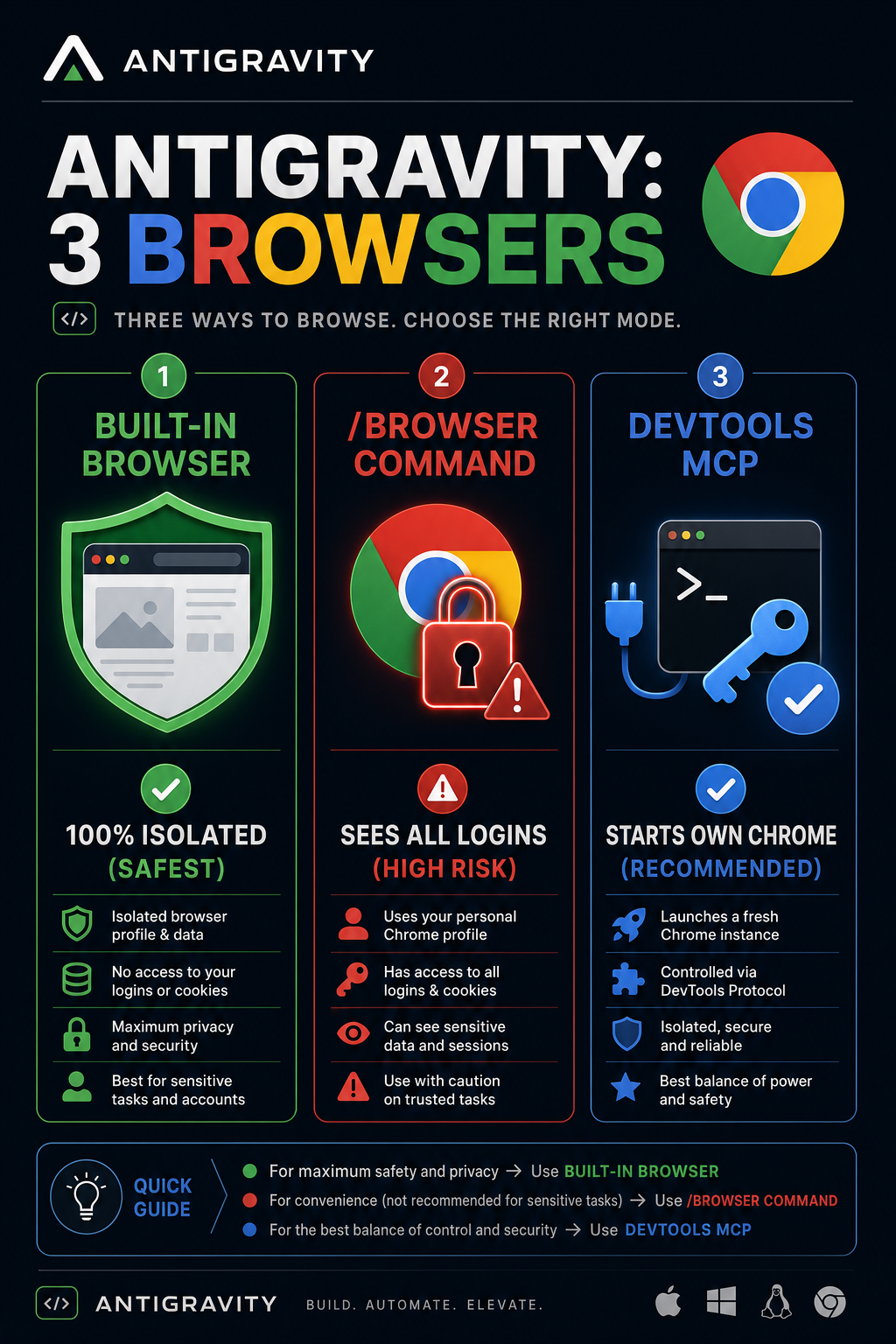
Antigravity browser mode 1: the built-in browser
The built-in Antigravity browser is a Browser Subagent that opens its own separate Chrome profile by itself. Google's docs say this profile does not share cookies or sign-ins with your normal Chrome, but sign-ins you make inside it stay saved. It is the safest option because the agent never touches your personal browser.
Antigravity built-in browser disappeared? Check Browser Tools first
After a recent update, the built-in browser disappeared for me. If yours is gone too, open Antigravity Settings, go to the Browser section and make sure Browser Tools is turned on. That toggle switches browser tools off completely. The same section has the Browser Profile setting, which controls where that separate profile lives. If the toggle is on and it is still missing, use mode 3 below. It gives you the same safe, separate Chrome.
Antigravity browser mode 2: /browser and the "Remote Debugging Required" popup
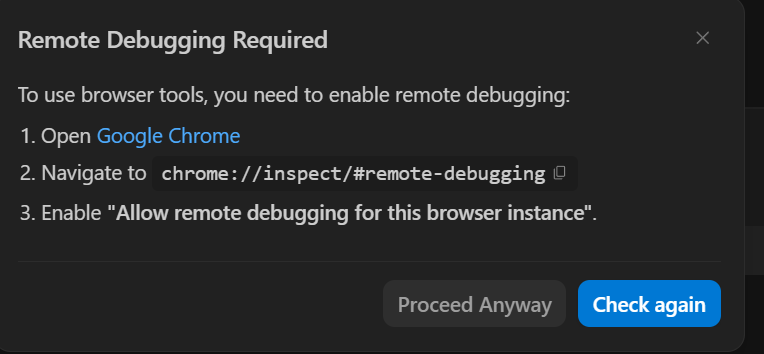
The /browser command does not open a new Chrome. It hands the web task to a browser subagent that attaches to the Chrome you already have open, through the Chrome DevTools MCP server. Google's docs only list it for the Antigravity App and CLI, but in my Antigravity IDE and App it is right there in the slash menu, with the same popup in both, as "browser: Invoke a browser agent for web tasks." The first time, Chrome must allow remote debugging, so you see this popup:
How to give the Antigravity browser access to your Chrome
To give the Antigravity browser access, you allow remote debugging once in your normal Chrome. It takes four steps:
- Open Chrome (the one you use every day).
- Type
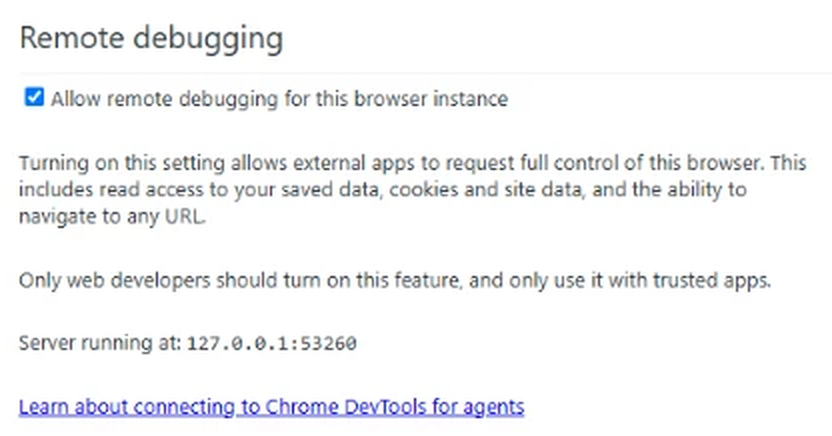
chrome://inspect/#remote-debuggingin the address bar and press Enter. - Tick Allow remote debugging for this browser instance.
- Go back to Antigravity and click Check again on the popup.
Stuck on "Server running at: starting…"? Check how Chrome was opened
When it works, the chrome://inspect page shows an address under the tick box, like Server running at: 127.0.0.1:53260, and /browser can attach. On my PC it stayed on "starting…" and never showed an address, so /browser kept showing the popup.
The cause was my Chrome taskbar shortcut. At some point I had added --remote-debugging-port=9222 to it, the old way to turn on remote debugging. Newer Chrome ignores that flag on your normal profile, and while Chrome is opened with it, the tick box never finishes starting. I checked it both ways: opened without the flag, the address appeared; opened from the old shortcut, it stayed on "starting…".
To check yours, type chrome://version in the address bar and look at the Command Line row. If it contains --remote-debugging-port, fix the shortcut:
- Right-click the Chrome icon on your taskbar, then right-click Google Chrome in that menu and pick Properties.
- In the Target box, delete everything after
chrome.exe", so the box ends with the closing quote. - Click OK. Do the same for any desktop or Start menu Chrome shortcut you use.
- Quit Chrome completely: close every window, and if Chrome still shows in the system tray, right-click it there and choose Exit.
- Open Chrome again from the fixed shortcut, go back to
chrome://inspect/#remote-debugging, and tick the box. The address should now appear.
Is it safe to allow remote debugging for the Antigravity browser?
Allowing remote debugging gives any app that connects full control of that Chrome, and Chrome's own warning says so. That means your agent can act inside your email, your bank, and every site you are signed into. I only tick it for a task that really needs my own logged-in Chrome, and I untick it again afterwards. For everything else I use mode 3.
Antigravity browser mode 3: the Chrome DevTools MCP with its own Chrome
The Chrome DevTools MCP is a plugin that gives your Antigravity agent its own browser tools: open a page, click, fill forms, take screenshots, read the console. By default it starts its own Chrome every time. It only tries to connect to an existing Chrome when you add a flag like --browser-url, --wsEndpoint or --autoConnect.
What broke my Antigravity browser: one line pointing at port 9222
My Antigravity browser was not working because my Chrome DevTools MCP config had one extra line: --browser-url=http://127.0.0.1:9222. That line tells the MCP "do not open your own Chrome, connect to the Chrome that is already listening on port 9222." Port 9222 is just a door number on your own computer that a debugging Chrome opens.
I had set it up that way earlier, with a separate Chrome that I started on port 9222. The setup worked only while that exact Chrome window was running. When I opened Antigravity without it, nothing was listening on port 9222, so the agent knocked on an empty door and waited forever. No error, no new window, just nothing happening.
Deleting that one line fixed it straight away. Now the MCP starts its own Chrome every time, with its own saved profile, and I never have to remember to open a special window first.
Antigravity browser control not working? Delete the --browser-url line
If the agent keeps waiting for Chrome, your MCP config is probably telling it to connect to a Chrome that is not running with debugging, exactly like mine was. Open mcp_config.json (on Windows I found mine at C:\Users\<you>\.gemini\antigravity\mcp_config.json; in Antigravity you can reach it from the MCP settings). Find the Chrome DevTools entry and remove the --browser-url argument. Back up the file before you edit it.
Before (waits for a Chrome that is not there):
"chrome-devtools": {
  "command": "npx",
  "args": [
    "-y",
    "chrome-devtools-mcp@latest",
    "--browser-url=http://127.0.0.1:9222"
  ]
}
After (starts its own Chrome every time):
"chrome-devtools": {
  "command": "npx",
  "args": ["-y", "chrome-devtools-mcp@latest"]
}
Then restart Antigravity, or refresh the MCP servers, and ask the agent to open a page. A fresh Chrome window should appear.
How do I stay signed in with the Antigravity browser?
The Chrome DevTools MCP keeps a saved profile, so you sign in once and it remembers. On my machine it lives at ~/.cache/chrome-devtools-mcp/chrome-profile (on Windows that is inside your user folder). Only add the --isolated flag if you want a throwaway profile that forgets everything.
There is one snag. When I tried to sign into Google inside the window the agent opened, Google refused with "This browser or app may not be secure". That window is run by automation, and Google blocks sign-ins there. The fix is to open the same profile as a normal Chrome, sign in, and close it:
- Close the Chrome window the agent opened.
- Press Win + R, paste this line (with your own Windows user name), and press Enter:
"C:\Program Files\Google\Chrome\Application\chrome.exe" --user-data-dir="C:\Users\YOUR-NAME\.cache\chrome-devtools-mcp\chrome-profile"
That line is for the Win + R box, and it also works as it is in Command Prompt. If you paste it into PowerShell or Windows Terminal, you get an "Unexpected token" error, because PowerShell needs an & in front of a quoted program path. Use this version there:
& "C:\Program Files\Google\Chrome\Application\chrome.exe" --user-data-dir="C:\Users\YOUR-NAME\.cache\chrome-devtools-mcp\chrome-profile"
- Sign into Google and any other site the agent needs.
- Close that Chrome window completely. While it is open, the profile is locked and the agent cannot open its own Chrome.
- Ask the agent to open a page again. It opens the same profile, and you are already signed in.
How to use your own signed-in Chrome with the Antigravity browser
To let Antigravity use your own signed-in Chrome, with all your logins already there, you allow remote debugging in that Chrome and then connect to it in one of two ways: the /browser command, or the Chrome DevTools MCP with --autoConnect. Both see everything you are signed into, so use them only when a task really needs your real accounts.
Step 1: Allow remote debugging in your everyday Chrome
Open your normal Chrome, go to chrome://inspect/#remote-debugging and tick Allow remote debugging for this browser instance (the same screenshot as above). Keep that Chrome open while the agent works. This is the switch that lets anything on your computer drive it.
Step 2, option A: use /browser in the Antigravity IDE or App
Type /browser followed by the task, for example /browser open my YouTube Studio and read the latest comments. The browser subagent attaches to the Chrome you already have open, so it lands on pages where you are already logged in. If the "Remote Debugging Required" popup appears, finish step 1 and click Check again.
Step 2, option B: point the Chrome DevTools MCP at your Chrome with --autoConnect
If you want the Chrome DevTools MCP to use your signed-in Chrome instead of its own, add --autoConnect to its args. It connects to your running Chrome (version 144 or newer) through the same remote debugging switch from step 1. Unlike the old --browser-url setup that broke mine, you do not need a special Chrome on port 9222. It finds your normal Chrome.
"chrome-devtools": {
  "command": "npx",
  "args": [
    "-y",
    "chrome-devtools-mcp@latest",
    "--autoConnect"
  ]
}
Restart the MCP servers after the change. To go back to the agent's own Chrome, remove --autoConnect again.
Step 3: Turn off Antigravity browser access when you are done
When the task is finished, go back to chrome://inspect/#remote-debugging and untick the box. I treat my signed-in Chrome like lending someone my house keys: fine for one job, but I take the keys back afterwards.
Which Antigravity browser should you use? My simple rule
Use the agent's own browser for almost everything, and use /browser only when the task must see your real, logged-in Chrome. Here is how I split it:
| Task | Browser I use | Why |
|---|---|---|
| Reading and checking pages, testing my own site | Agent's own browser (mode 1 or 3) | No personal logins inside |
| Posting to one social account | Agent's own browser, signed into that one account | It only sees what it needs |
| Something only my real Chrome has | /browser (mode 2) | Full access, so use it rarely |
Whatever browser the agent drives, it fully controls. What matters is what is inside it. A clean profile with one login is far safer than your everyday Chrome with every account open. If you also use Claude models inside Antigravity, my Google Antigravity Claude guide covers that side.
Antigravity browser not working: FAQ
Why is the Antigravity browser not opening?
The Antigravity browser is usually not opening because the mode you are using is missing its one requirement. In my case it was a --browser-url line pointing at port 9222 while no Chrome was listening there. Check Browser Tools for the built-in browser, the remote debugging tick for /browser, or a leftover --browser-url line for the Chrome DevTools MCP.
Where do I find /browser in Antigravity?
Type / in the agent chat box and pick browser from the menu. I see it in both the Antigravity IDE and the App, and Google's docs also list it for the CLI. If it is missing, an organisation admin may have turned browser access off, which hides the command.
Do I need the Antigravity browser extension?
Not for the fixes in this guide. Google's current browser docs do not list an extension as a requirement for the built-in browser or /browser, and the Chrome DevTools MCP needs none.
How do I remove Antigravity browser control from my Chrome?
Open chrome://inspect/#remote-debugging and untick Allow remote debugging for this browser instance. After that, nothing can attach to your everyday Chrome.
Does the Antigravity browser see my passwords?
The built-in browser and the Chrome DevTools MCP use their own profiles, so they only see what you sign into there. /browser uses your real Chrome, so it can act inside every site you are signed into.