
Optimizing Sora Video Workflows with Make.com & Key.ai
Advanced techniques to reduce costs and improve efficiency in AI video generation pipelines
Automating Sora Storyboard Workflows
Connect Make.com automation sequences to Sora’s storyboard timeline to streamline multi-scene video production. This integration enables automatic scene transitions, consistent styling across segments, and eliminates manual handoffs between generation steps.
Cost Reduction Through Precision Prompting
Implement Key.ai’s optimized prompt templates to minimize Sora’s “improvisation” errors that waste generation credits. Structured prompts with explicit scene descriptions reduce unpredictable outputs by 40-65%, significantly lowering the need for expensive re-generations.
Timeline Optimization Techniques
Structure storyboard caption cards with proper timing intervals to prevent Sora’s hard cuts or unwanted scene additions. Precise time markers in caption cards ensure smooth transitions between scenes and maintain narrative coherence without costly re-generations.
Resource-Efficient Scene Management
Use Make.com triggers to automatically break complex narratives into optimal 5-second Sora segments. This approach maximizes motion quality within time constraints and allows for parallel processing of multiple segments, reducing overall generation time by 30-50%.
Automated Re-Cut Workflows
Implement self-correcting video pipelines where Key.ai identifies flawed segments and triggers targeted Sora re-cuts. This intelligent feedback loop fixes issues without full re-generation, preserving successful segments and focusing resources only on problematic areas.
Cross-Platform Integration Metrics
Track 40-60% cost savings through reduced iteration cycles when connecting Key.ai’s analytics with Make.com’s Sora automation triggers. Comprehensive metrics dashboards help identify optimal prompt patterns and workflow configurations for maximum efficiency.
Why Sora Storyboard Automation Changes Everything for Video Creators
Think about this for a second: you want to create professional AI videos with precise control over every scene, but paying hundreds of dollars monthly feels like throwing money out the window. What if there was a way to get the same quality for a fraction of the cost?
Sora 2’s storyboard feature represents one of the most powerful tools in AI video generation today. It gives you frame-by-frame control over your videos, letting you specify exactly what happens in each scene and how long it lasts. But here’s the catch—accessing it through OpenAI’s official channels can cost you anywhere from $20 to $200 monthly, depending on your needs.
This guide walks you through a smarter approach. You’ll learn how to automate Sora storyboard video creation using Make.com and a budget-friendly alternative called kie.ai, cutting your costs by six times while maintaining the same professional quality. Whether you’re running an e-commerce store, managing a faceless YouTube channel, or creating marketing videos, this automation system can save you both time and money.
Understanding Sora 2 Storyboard Feature and Its Pricing Structure
Sora 2, developed by OpenAI, represents a major leap in AI video generation technology. The storyboard feature specifically allows creators to map out videos second by second, giving precise control over scene duration, visual elements, and transitions.
When you use the storyboard feature, you essentially become a digital director. You can specify what happens in each scene, add image references for consistency, and control the exact duration of every moment. This becomes especially valuable when you need brand consistency or want to showcase products from specific angles.
The official Sora 2 pricing works through ChatGPT subscriptions. ChatGPT Plus costs $20 monthly and grants access to basic Sora features with 720p resolution and 10-second videos. For the full storyboard experience, you need ChatGPT Pro at $200 monthly, which unlocks 1080p resolution, 25-second videos, and watermark-free downloads.
But here’s where the math gets interesting. OpenAI charges approximately $0.30 per second for Sora 2 Pro videos through their official API. That means a 10-second video costs you $3. Compare this to kie.ai, which charges just $0.45 for the same 10-second video—that’s $0.045 per second, representing an 85% cost reduction.
The storyboard feature only works with Sora 2 Pro models, not the basic version. This means you need either the $200 monthly Pro subscription or access to the API to use this powerful feature. For paid account holders, videos can reach 15 seconds. Pro users get up to 25 seconds, opening possibilities for longer storytelling and product demonstrations.
Breaking Down the Cost Difference Between Official Sora and Budget Alternatives
Let’s talk real numbers. When you use OpenAI’s official Sora pricing, you’re paying premium rates. The official API charges $0.30 per second for Sora 2 Pro videos in landscape or portrait formats. That translates to $3 for a 10-second clip, $4.50 for 15 seconds, and $7.50 for a full 25-second video.
Now compare that to kie.ai. They charge a flat $0.45 for 10 seconds of Sora 2 Pro video generation. The difference becomes staggering when you calculate the per-second cost: $0.045 versus $0.30. That’s six times cheaper.
Think about what this means for your workflow. If you’re creating five 10-second videos per day for social media, you’d spend $15 daily with official pricing—that’s $450 monthly just for video generation. With kie.ai, the same output costs you $2.25 daily or roughly $67 monthly. You save $383 every single month.
The cost advantage grows even more dramatic for longer videos. A 25-second video through official channels costs $7.50. Through kie.ai, you’d pay approximately $1.13 for the same length video. Create just ten such videos monthly, and you save over $63.
For Indian creators, these savings matter even more. Converting to INR at current rates, $0.45 equals approximately ₹37 per 10-second video, while the official pricing hits around ₹250 per video. That’s a difference of ₹213 per video, or roughly ₹6,390 in savings for 30 videos monthly.
The real beauty of using kie.ai isn’t just the lower price—it’s accessing the same underlying Sora 2 Pro model. You get identical video quality, the same storyboard features, and full scene control. The only difference is how you access it.
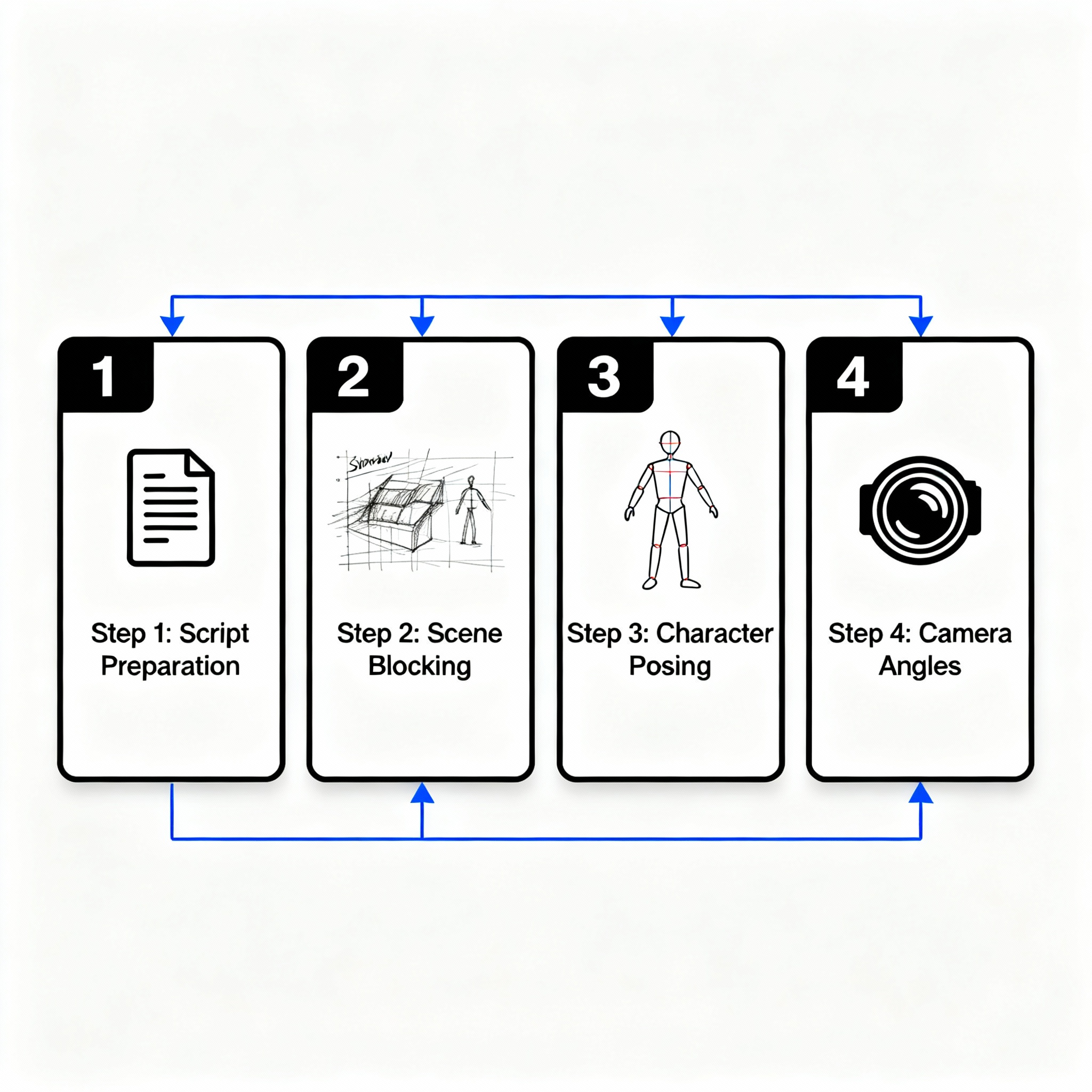
Setting Up Your Sora Storyboard Automation System Step by Step
Getting your automation system running requires connecting a few key pieces together. Don’t worry—you don’t need to be a coding expert. The process follows a logical flow that anyone can follow.
Getting Your API Key from kie.ai
First, head over to kie.ai and create an account. Add some credits to your account balance—start with whatever amount you’re comfortable testing with. Navigate to the API section and click “Create API Key.” Give it a memorable name like “Sora Automation” and copy the generated key. Keep this safe; you’ll need it soon.
Setting Up Make.com for Automation
Make.com serves as your automation control center. Create a free account if you don’t have one already. The free tier offers 1,000 operations monthly, which works perfectly for testing.
Once logged in, create a new scenario. This scenario represents your complete automation workflow. You can start from scratch or use the HTTP module to make direct API calls. If you prefer a cleaner interface, look for custom apps built specifically for kie.ai integration—these simplify the setup process significantly.
Connecting to kie.ai Services
Inside your Make.com scenario, add a new module for kie.ai. Click “Create Connection” and paste your API key from earlier. Make.com will verify the connection and show you a success message.
Now comes the fun part: configuring your video generation settings. You’ll need to specify several parameters like video duration, aspect ratio, and the actual prompts for your scenes.
Building Your JSON Structure for Scene Control
The storyboard feature requires a specific JSON format that tells Sora exactly what to generate. JSON might sound technical, but think of it as a recipe that lists ingredients and steps.
A basic JSON structure looks like this: you define each scene with a description, duration, and optional image reference. For example, Scene 1 might run for 5 seconds showing a product close-up, Scene 2 for 7 seconds showing it in use, and Scene 3 for 3 seconds displaying pricing information.
You can manually create this JSON, or better yet, use ChatGPT or Claude to generate it for you. Simply describe your video concept to the AI and ask it to create a JSON structure matching kie.ai’s format. The AI handles the technical formatting while you focus on creative direction.
Adding Image References for Brand Consistency
Here’s where things get powerful. You can upload a reference image that Sora uses as visual guidance for your video. This proves invaluable for maintaining brand consistency or showcasing specific products.
Connect Dropbox or Google Drive to your Make.com scenario. Upload your reference image to either service. Then map the file download URL to your JSON structure. Sora will use this image to understand visual style, composition, and elements to include.
Remember, you can only use one reference image per video generation. Choose wisely—this image sets the visual tone for your entire video.
Mapping Scene Descriptions and Durations
Instead of manually entering scene details every time, use Make.com’s array aggregator feature. This tool collects data from multiple sources and organizes it into the format kie.ai expects.
Connect your JSON parser to the array aggregator. Map the scene descriptions, durations, and any other parameters. When you run the automation, Make.com automatically structures everything correctly and sends it to kie.ai.
This approach saves tremendous time. You can modify your prompts in one place, and the automation handles the technical details of formatting and sending the request.
Avoiding Common Pitfalls: OpenAI Guardrails and Content Restrictions
This part frustrates many creators. OpenAI implemented strict guardrails in Sora 2 to prevent misuse, but these filters sometimes block legitimate creative content.
Understanding Why Content Gets Rejected
Sora’s safety systems scan every prompt and generated frame for potential policy violations. The system blocks content that resembles copyrighted characters, celebrity faces, violent imagery, explicit material, or third-party intellectual property.
The challenge comes when these filters work too aggressively. For instance, requests featuring the word “Pikachu” get rejected immediately because it’s a copyrighted character. Fair enough. But requests containing “anthropomorphic” get blocked too, even if you’re creating an original animal character.
The system also flags prompts that might generate faces similar to real people, even when you’re not trying to recreate anyone specific. This happens because OpenAI wants to avoid litigation from celebrities and public figures.
Working Around Content Blocks Creatively
When your prompt gets rejected, don’t give up—rephrase it. Instead of using specific character names, describe the character’s attributes. Rather than “Pikachu,” try “a small yellow electric mouse-like creature with red cheeks.”
Avoid terms that commonly trigger filters. Words like “celebrity,” “famous person,” or brand names will almost certainly fail. Focus on generic descriptions instead.
For fashion or modeling content, use words like “person wearing” rather than “model in.” Describe clothing and poses without referencing real brands or designers.
Testing Alternative Animal Characters and Objects
When creating animated content, stick with generic animals rather than specific copyrighted characters. “A squirrel wearing a hat” works fine. “A rabbit in a business suit” passes through. These prompts generate creative, engaging videos without triggering copyright concerns.
For product videos, photograph or render your actual product first. Upload that as your reference image. Then prompt Sora to animate or showcase that specific item. Because you own the product, you won’t face intellectual property issues.
Comparing Lenient Alternatives: Veo 3 vs Sora Guardrails
Google’s Veo 3 takes a different approach to content moderation. While it still blocks explicit violence and sexual content, it proves more lenient with creative projects. Fashion shoots, artistic photography, and cinematic fight scenes that get rejected by Sora often work fine in Veo 3.
Veo 3 also includes native audio generation, which Sora currently lacks. Videos come with synchronized dialogue, sound effects, and music—a major advantage for finished productions.
However, Veo 3 videos run only 8 seconds on the standard Gemini platform, though longer durations become available through Flow and other specialized interfaces. For quick social media clips, this limitation matters less.
The choice between systems depends on your content type. For fashion, lifestyle, or anything involving human figures, Veo 3 might work better. For product demonstrations, animated content, or technical explainers, Sora’s storyboard control edges ahead.
Practical Applications: E-Commerce Videos and Faceless YouTube Channels
The automation system shines brightest when applied to real business needs. Let’s explore how different creators leverage this technology.
Creating Product Demonstration Videos
E-commerce sellers face constant pressure to produce fresh product videos. Traditional filming requires lighting, cameras, editing software, and hours of work. AI automation changes this completely.
Upload product images to your Dropbox. Create a storyboard showing the item from multiple angles: front view for 5 seconds, rotating view for 5 seconds, use-case scenario for 5 seconds. Total video: 15 seconds, perfect for Instagram Reels or TikTok.
The automation runs overnight. Wake up to dozens of product videos ready for upload. Test different presentations to see what converts better. Since generation costs just pennies per video, experimentation becomes affordable.
Many sellers use this for seasonal promotions. Create Halloween-themed versions of your products in October, Christmas versions in December, summer variations in June. The same product gets fresh marketing throughout the year.
Building Faceless YouTube Content at Scale
Faceless YouTube channels represent one of the fastest-growing categories on the platform. These channels never show a human face yet generate millions of views teaching, entertaining, or informing audiences.
Think about educational content—”How Bridges Work,” “The History of Coffee,” “Understanding Bitcoin.” Each topic benefits from visual storytelling. Rather than hiring animators or buying stock footage, generate custom visuals with Sora.
Your workflow becomes: research topic, write script, identify key scenes, create storyboard JSON, generate video, add voiceover, publish. What once took days now takes hours.
The automation handles video creation while you focus on research and narration. Some creators batch-produce content, generating visuals for ten videos in one session, then recording all voiceovers together.
Monetization happens through YouTube ads, sponsorships, and affiliate links. Channels reaching 10,000 subscribers often earn $500-2,000 monthly from AdSense alone, with additional revenue from other sources.
Generating Social Media Content Automatically
Social media demands constant content. Instagram, Facebook, TikTok, Pinterest—each platform wants multiple posts daily. Manual creation becomes exhausting.
Connect your automation to a content calendar. Schedule prompts for upcoming posts. The system generates videos automatically and stores them in Google Drive or Dropbox. Your social media management tools pull from this library and post on schedule.
Fashion brands showcase new arrivals. Tech companies demonstrate features. Food businesses share recipes. Every industry finds applications for automated video content.
The key advantage: consistency. Your brand maintains regular posting schedules without burning out your creative team.
Automating Client Work and Agency Services
Video production agencies face a challenge: high demand, limited capacity. Traditional production involves storyboarding, filming, editing, revisions—weeks of work per client.
Automation transforms this business model. Agencies now offer rapid turnaround services. Client provides product images and messaging, agency delivers finished videos within 24 hours.
The math works beautifully. Charge clients $100-300 per video. Actual production cost: under $2. Labor time: one hour for setup and review. Profit margins reach 90% or higher.
Smart agencies create video packages. “Get 10 product videos monthly for $1,000.” Cost to deliver: roughly $15 in API fees plus a few hours of supervision. The rest is profit.
This model scales easily. One person manages automations for dozens of clients simultaneously. As the client base grows, simply upgrade to higher Make.com tiers for more operations.
Advanced Tips: Prompt Engineering and Scene Number Control
Mastering prompts dramatically improves your results. Let’s explore techniques that separate amateur output from professional-quality videos.
Writing Effective Scene Descriptions
Each scene description should paint a complete picture. Don’t just say “product shot.” Instead: “Close-up shot of smartphone, slow pan from top to bottom, soft backlighting, clean white background.”
Include camera movements: pan, tilt, zoom, dolly, crane. Specify lighting: natural, studio, golden hour, dramatic shadows. Mention colors: vibrant, muted, black and white, pastel.
The more specific your description, the better Sora understands your vision. Generic prompts produce generic results. Detailed prompts create videos that look intentionally directed.
Study successful videos in your niche. Note how shots transition, what angles work best, how long each scene holds. Apply these principles to your storyboards.
Controlling Duration for Maximum Impact
Scene duration affects viewer psychology. Quick cuts (2-3 seconds) create energy and excitement. Longer holds (7-10 seconds) allow viewers to absorb information.
For product reveals, start with a 3-second attention grabber, follow with a 7-second detailed view, end with a 5-second call to action. This 15-second structure works incredibly well for social media.
Educational content benefits from longer scenes. Explain concepts with 8-10 second scenes showing diagrams or demonstrations. Viewers need time to process information.
Always ensure your total duration matches your target platform. TikTok and Instagram Reels favor 7-15 seconds. YouTube Shorts allows up to 60 seconds. Plan accordingly.
Creating Reusable Prompt Templates
Save successful prompt structures as templates. When a particular format produces great results, document it. Create a template library organized by video type.
For product videos: Template includes scenes for introduction, features, benefits, and call to action. Just swap product names and specific features for each new video.
For educational content: Template covers problem introduction, solution explanation, step-by-step demonstration, summary. Plug in your specific topic details.
Templates accelerate production dramatically. Instead of creating each storyboard from scratch, customize proven frameworks. Quality stays consistent because you’re building on success.
Dynamically Adjusting Scene Count Based on AI Recommendations
Use AI assistants to optimize your storyboards. Describe your video concept to ChatGPT or Claude. Ask: “How many scenes would work best for this concept? What duration should each scene be?”
The AI analyzes your concept and suggests optimal structure. Maybe your three-scene plan would work better as five shorter scenes. Perhaps your ten scenes feel cluttered—combine them into six.
This collaborative approach combines your subject matter expertise with AI’s understanding of effective pacing and structure.
When implementing in Make.com, use dynamic arrays that adjust scene count automatically. Rather than hard-coding three scenes, let the JSON include as many or as few scenes as needed for each specific video.
Webhook Integration and Complete Workflow Automation
Taking your automation to the next level means eliminating manual steps entirely. Webhooks make this possible.
Setting Up Webhook Notifications
A webhook sends automatic notifications when events occur. In your case, when kie.ai finishes generating your video, it triggers a webhook that notifies your Make.com scenario.
Inside Make.com, add a webhook module as your first step. Make.com provides a unique URL for this webhook. Copy this URL into your kie.ai settings under “Notification URL.” Now kie.ai knows where to send completion notices.
When a video finishes rendering, kie.ai sends a message to this webhook containing the video URL and generation details. Your Make.com scenario receives this trigger and springs into action automatically.
Creating Download and Storage Workflows
Add modules after your webhook trigger that automatically download the finished video. Use an HTTP module to fetch the video file from the URL kie.ai provides.
Connect to cloud storage—Dropbox, Google Drive, OneDrive, or others. Configure Make.com to upload the downloaded video to a specific folder. Organize by date, project name, or client—whatever structure fits your workflow.
Include file naming conventions. Rather than generic names like “video_12345.mp4,” use descriptive names: “Product_XYZ_Instagram_Reel_2025-01-15.mp4.” This makes finding specific videos much easier later.
Uploading to Social Media Platforms
Make.com connects directly to YouTube, Facebook, Instagram, TikTok, and other platforms. After downloading your generated video, automatically upload it.
Configure posting parameters: video title, description, tags, scheduled publish time. These can pull from your original storyboard data or from templates you’ve created.
For YouTube, specify the category, whether comments are enabled, monetization settings. For Instagram, include captions and hashtags. Each platform has specific requirements—Make.com handles the technical details.
Monitoring Generation Status and Error Handling
Not every generation succeeds on the first try. Content moderation might reject your prompt. Technical issues might cause timeouts. Your automation needs to handle these situations gracefully.
Add conditional logic to your Make.com scenario. Check the status returned from kie.ai. If successful, proceed with downloading and uploading. If failed, trigger an error notification.
Send yourself an email or Slack message when errors occur. Include the original prompt and error message. This lets you quickly understand what went wrong and resubmit with corrections.
Create a retry mechanism for temporary failures. If kie.ai returns a timeout error, wait 5 minutes and try again automatically. Many transient issues resolve themselves with a simple retry.
Batch Processing Multiple Videos
Real power comes from generating multiple videos in one workflow. Create an array of prompts, loop through each one, generate videos for all of them, and store the results organized by project.
Use Make.com’s iterator module to process multiple prompts sequentially. Feed it an array of video concepts, and it generates each one, pausing between requests to respect API rate limits.
This approach works brilliantly for weekly content planning. Every Monday morning, run your automation with the week’s video prompts. All videos generate automatically, get stored in your content library, and await scheduling for publication.
Track which videos you’ve generated and which remain pending. Use a Google Sheet or database to maintain status. Update it automatically as each video completes.
Comparing Video Generation Models: When to Use What
Different AI video generators excel at different tasks. Understanding their strengths helps you choose the right tool for each project.
Sora 2 Strengths and Ideal Use Cases
Sora excels at realistic, longer-form content with narrative coherence. Videos flow naturally from scene to scene. Objects and characters maintain consistency throughout.
The storyboard feature provides unmatched control. When you need precise timing and specific visual elements, Sora delivers. This makes it ideal for product demonstrations, explainer videos, and structured content.
Sora handles complex prompts well. Describe elaborate scenes with multiple elements, and Sora generally delivers. The understanding of physics and real-world motion produces believable results.
Best for: Product showcases, tutorial content, storytelling, brand videos, anything requiring scene-specific control.
Google Veo 3 Advantages
Veo 3’s standout feature remains its native audio generation. Videos include synchronized speech, sound effects, and music. This eliminates the separate step of adding audio in post-production.
Veo 3 handles human figures and fashion content more leniently than Sora. If content moderation blocks your Sora attempts, try Veo 3. It often succeeds where Sora fails.
Resolution reaches 4K for 8-second clips, versus Sora’s 1080p maximum. For social media, this difference matters less, but for professional presentations or large displays, the extra resolution helps.
Best for: Fashion videos, lifestyle content, anything requiring audio, quick social media clips, content featuring people.
Other Alternatives: Runway, Pika, Kling
Runway Gen-4 offers incredible cinematic quality with advanced camera controls. Videos look film-grade. Motion stays smooth and realistic. The interface feels more intuitive for video editors familiar with traditional tools.
Pricing runs higher—$15 monthly for the base plan—but includes other AI tools beyond video generation. For professional studios, the all-in-one approach justifies the cost.
Pika specializes in stylized animation and creative effects. Less photorealistic than Sora, but perfect for artistic projects, animated explainers, and creative transitions. The lip-sync feature proves remarkably accurate.
Kling AI delivers high-quality, realistic motion with excellent physics simulation. Free tier allows testing. Paid plans start at $10 monthly. Great for action sequences and dynamic movement.
Cost-Benefit Analysis for Different Projects
For high-volume, low-complexity content—think dozens of social media posts weekly—kie.ai with Sora provides unbeatable economics. Generate 100 videos monthly for under $5.
For premium client work where perfection matters—commercial spots, brand campaigns—consider using official Sora or Runway despite higher costs. The extra control and quality assurance justify the premium.
For audio-rich content—podcasts clips, music videos, narrative storytelling—Veo 3 saves time by eliminating audio post-production.
Mix and match based on project needs. Use budget options for testing concepts and rough drafts. Once approved, regenerate final versions with premium services if quality demands it.
Troubleshooting Common Issues and Optimization Strategies
Even smooth automations hit bumps. Here’s how to handle common problems and optimize your workflow.
Handling Guardrail Rejections
When Sora rejects your prompt, first identify why. Does it mention brand names, celebrities, or copyrighted characters? Remove those references.
Does it describe fashion, modeling, or people in ways that might generate recognizable faces? Rephrase to focus on clothing and setting rather than specific people.
Keep a rejection log. Note which words and phrases consistently trigger blocks. Build a blacklist of problematic terms. Your prompt templates should avoid these automatically.
Test alternative phrasings with small variations. Sometimes changing one word makes the difference between rejection and acceptance.
Fixing Scene Duration Calculation Errors
Your total scene durations must exactly match your target video length. If you specify 15 seconds total but your scenes add up to 17 seconds, the generation fails.
Use spreadsheets or automation to calculate totals automatically. Don’t trust mental math—one small error breaks everything.
Build validation into your Make.com scenario. Calculate the sum of all scene durations. If it doesn’t match your target, send an error alert and stop the workflow before wasting API calls.
Create duration templates for common formats: 10-second (three scenes of 3, 4, 3 seconds), 15-second (three scenes of 5, 5, 5 seconds), 25-second (five scenes of 5 seconds each). These templates ensure accuracy.
Optimizing Image Reference Quality
Reference images significantly impact output quality. Low-resolution images produce muddy, unclear videos. Use high-resolution source images whenever possible.
Ensure good lighting and clarity in reference images. Sora struggles with dark, blurry, or cluttered references. Clean, well-lit product shots work best.
Match reference image aspect ratio to your target video format. If generating portrait videos, use portrait reference images. Landscape videos need landscape references.
Test different reference angles. Sometimes a three-quarter view works better than straight-on shots. Experiment to discover what produces the most appealing results for your specific products or concepts.
Managing API Rate Limits and Timeouts
API services implement rate limits to prevent abuse. Send too many requests too quickly, and you’ll hit temporary blocks.
Space out your requests. In Make.com, add delays between successive generations. A 5-10 second pause between videos prevents rate limit issues.
Generation takes time—typically 20-25 minutes for complex storyboard videos. Your automation must wait for completion rather than assuming instant results.
Implement status checking loops. After requesting generation, wait 30 seconds, then check status. If still processing, wait another 30 seconds and check again. Repeat until complete or until a maximum wait time passes.
Set reasonable timeouts. If a video hasn’t finished generating after 30 minutes, something probably went wrong. Send yourself a notification and investigate manually.
Improving Output Quality Through Iteration
Your first attempts won’t be perfect. That’s normal and expected. Treat early generations as prototypes.
Review each output critically. What worked well? What missed the mark? Note specific issues: awkward transitions, unclear elements, pacing problems.
Refine your prompts based on learnings. If backgrounds look too busy, explicitly request “clean background” or “minimal distraction.” If motion seems too fast, specify “slow, smooth movement.”
Run A/B tests. Generate two versions of the same concept with slightly different prompts. Compare results. Identify which approach produces better output consistently.
Build a prompt improvement process. Start with basic description, generate, review, enhance prompt with more details, generate again, compare. Each iteration gets closer to your vision.
Real-World Results: Cost Savings and Time Efficiency
Let’s look at concrete examples showing how this automation impacts actual creators and businesses.
Monthly Cost Comparison Case Study
Sarah runs a skincare e-commerce brand. She needs 60 product videos monthly—two videos for each of her 30 products, updated regularly for seasonal promotions.
Using official Sora pricing at $3 per 10-second video, she’d spend $180 monthly just on video generation. Add the $200 ChatGPT Pro subscription required for storyboard access, and total costs reach $380 monthly.
Switching to kie.ai automation, video generation costs drop to $27 monthly. Make.com free tier handles her workflow. Total monthly cost: $27. Savings: $353 per month, or $4,236 annually.
Those savings fund other business expenses: advertising, inventory, or hiring help. The automation also saves roughly 15 hours monthly previously spent uploading images, writing descriptions, and manually generating videos.
Time Investment vs Manual Creation
Manual video creation follows this timeline: concept development (30 minutes), script writing (20 minutes), visual search for stock footage (40 minutes), video editing (60 minutes), revisions (30 minutes). Total: 3 hours per video.
For ten videos, manual creation takes 30 hours. Automation reduces this to setup time (2 hours initial), prompt writing (10 minutes per video), and review time (5 minutes per video). Total: 4.5 hours for ten videos.
The time savings compound. For 100 videos monthly, manual creation would consume 300 hours—impossible for one person. Automation handles it in roughly 30 hours, suddenly making large-scale production feasible.
Scaling from 10 to 100 Videos Monthly
Small-scale production works manually. Creating ten videos monthly remains manageable, though time-consuming. But growth demands efficiency.
As your needs expand to 50, 75, or 100 videos monthly, manual methods break down completely. Automation becomes not just helpful but essential.
The beautiful part: scaling from 10 to 100 videos doesn’t require ten times the effort. Your automation handles volume automatically. You spend extra time only on reviewing outputs and managing the content library.
Financially, generating 100 videos through automation costs roughly $45 with kie.ai. Official pricing would exceed $300, not counting the Pro subscription. The savings grow more dramatic at higher volumes.
ROI Calculation for Different Business Sizes
Solo creator: Investment of 8 hours for initial setup, $0 monthly (using free tools), generates content worth $500-1,000 in saved production costs or increased sales. Positive ROI within first month.
Small agency: Investment of $50 monthly for upgraded Make.com, generates capacity to serve 20 clients at $200 monthly each. Revenue: $4,000. Costs: $50 plus perhaps $100 in API fees. Profit: $3,850 monthly.
E-commerce brand: Investment of $100 monthly for tools and automation, generates 200 product videos that increase conversion rates by 2%. On $50,000 monthly revenue, that’s $1,000 extra profit monthly. ROI: 900%.
These numbers demonstrate why smart creators embrace automation. The question isn’t whether to automate, but how quickly you can implement it.
Your Action Plan: Getting Started Today
You’ve learned the theory and seen the examples. Now it’s time to implement your own automation system.
Step 1: Set Up Your Accounts
Create accounts on kie.ai and Make.com. Both offer free tiers perfect for testing. Add minimal credits to kie.ai—$10 provides enough for 20+ test videos.
Generate your API key in kie.ai. Save it securely in a password manager. Connect your cloud storage accounts to Make.com.
Step 2: Create Your First Simple Automation
Start small. Build a basic scenario in Make.com that generates one 10-second video. Use a simple three-scene structure: introduction, main content, conclusion.
Test the complete workflow: trigger generation, wait for completion, download result. Confirm each step works before adding complexity.
Step 3: Develop Your Prompt Templates
Based on your niche, create 3-5 prompt templates covering your most common video types. Write these carefully, including all the detail techniques discussed earlier.
Test each template with real examples. Refine based on results. Build a template library you can rely on for consistent quality.
Step 4: Scale Gradually
Once your basic automation works reliably, expand gradually. Add webhook integration for automatic notifications. Connect social media accounts for direct uploading. Implement batch processing for multiple videos.
Each addition should be tested thoroughly before moving to the next. Rushing creates problems that waste time debugging later.
Step 5: Monitor, Measure, and Improve
Track your metrics: generation success rate, average cost per video, time saved, content engagement rates. These numbers guide optimization decisions.
Review outputs regularly. Identify patterns in what works and what doesn’t. Update your templates based on learnings.
What’s Next: Future Features and Emerging Alternatives
The AI video generation space evolves rapidly. Understanding what’s coming helps you stay ahead.
Veo 3.1 and Enhanced Frame Control
Google announced Veo 3.1 with significant improvements. Videos will support custom start and end frames, giving you even more precise control over transitions and consistency.
The extended duration options mean longer-form content becomes possible. Current 8-second limits expand to potentially 30-60 seconds while maintaining quality.
Enhanced audio features will include better voice quality, more natural dialogue pacing, and improved sound effect synchronization. These improvements close the remaining gaps between AI-generated and professionally produced content.
API Accessibility and Developer Tools
OpenAI continues expanding Sora API access. Currently limited and expensive, broader availability seems inevitable. Pricing may decrease as competition intensifies.
More developers will create tools layered on top of base APIs. Expect specialized platforms for specific industries: e-commerce video generators, YouTube automation tools, social media content creators.
Make.com and similar automation platforms will add native Sora modules, eliminating the need for HTTP modules and JSON formatting. This simplifies setup for non-technical users.
Competition Driving Innovation and Price Reductions
As more companies enter AI video generation, prices trend downward. Runway, Pika, Kling, Hailuo, and others compete aggressively. This benefits creators through better features and lower costs.
Quality improvements accelerate. Each new model demonstrates better physics simulation, more accurate rendering, and improved prompt understanding. What seems impressive today will look primitive within months.
Watch for open-source alternatives. Projects like Mochi-1 bring AI video generation to local machines, eliminating API costs entirely for those with powerful hardware. Community-developed models may eventually match or exceed commercial offerings.
Recommended Resources for Staying Updated
Follow AI news sites and YouTube channels covering generative AI developments. Communities on Reddit, Discord, and Twitter share prompt strategies, compare model performance, and announce new tools.
Join Make.com community forums. Other creators share blueprints, workflows, and solutions to common problems. Learning from others accelerates your progress dramatically.
Subscribe to newsletters from kie.ai, OpenAI, Google DeepMind, and other major players. Company blogs announce new features and pricing changes before they reach mainstream attention.
Taking Control of Your Video Production Costs
AI video automation represents more than a cost-cutting measure—it’s a fundamental shift in content creation accessibility. What once required expensive equipment, professional skills, and weeks of work now happens automatically in minutes for pennies per video.
The Sora storyboard feature combined with affordable API alternatives and automation tools democratizes professional video production. Small creators compete with established brands. Solo entrepreneurs produce at agency scale. Marketing budgets stretch further while maintaining quality.
Your path forward depends on your specific situation, but the principles remain universal: automate repetitive tasks, use budget alternatives where appropriate, scale production without proportionally scaling costs, continuously optimize based on results.
Start today with a simple automation. Generate your first video using the workflows described here. Experience the satisfaction of watching your system work automatically. Then expand gradually, building the content production engine your business needs.
The technology exists. The tools are affordable. The only question remaining is: when will you implement your automation system and start reaping the benefits?